
How to Adapt Existing Units with AI: A Step-by-Step Guide

Curriculum Genie’s "Adapt Existing Unit" feature is designed to help educators breathe new life into their current lesson plans without starting from scratch. Whether you want to quickly add modern instructional modules or completely rebuild a unit from the ground up, Curriculum Genie extracts your existing content and enhances it to meet today’s classroom expectations. This guide covers how to import your unit, review AI extraction, and choose the right enhancement mode for your goals.
Key Takeaways
- Intelligent Extraction & Alignment: Automatically analyze uploaded files (PDF, Word, or Google Docs) to identify unit structure and ensure accurate standards alignment.
- Flexible Design Modes: Choose between Light Adapt for quick enrichment or Deep Redesign for a full unit restructure based on your instructional goals.
- Zero-Effort Migration: Adapt existing curriculum units with AI—no rewriting required—using your current materials as the creative foundation.
Who This Tutorial Helps
- Teachers looking to refresh lesson plans with modern instructional strategies.
- Curriculum Directors aiming to align district resources with new state standards.
- District Leaders seeking scalable ways to update legacy curriculum materials.
Try Adapting Existing Unit with an Example
Step-by-Step Guide: How to Adapt an Existing Unit
Pro Tips:
🌟 Light Adapt (Batch Add-On) → Keeps your original structure while enriching each lesson with powerful, ready-to-use add-on modules.
🔮 Deep Redesign → Uses your content as the creative foundation to completely rethink and rebuild your entire unit structure.
Follow the steps below to transform your existing units in minutes.
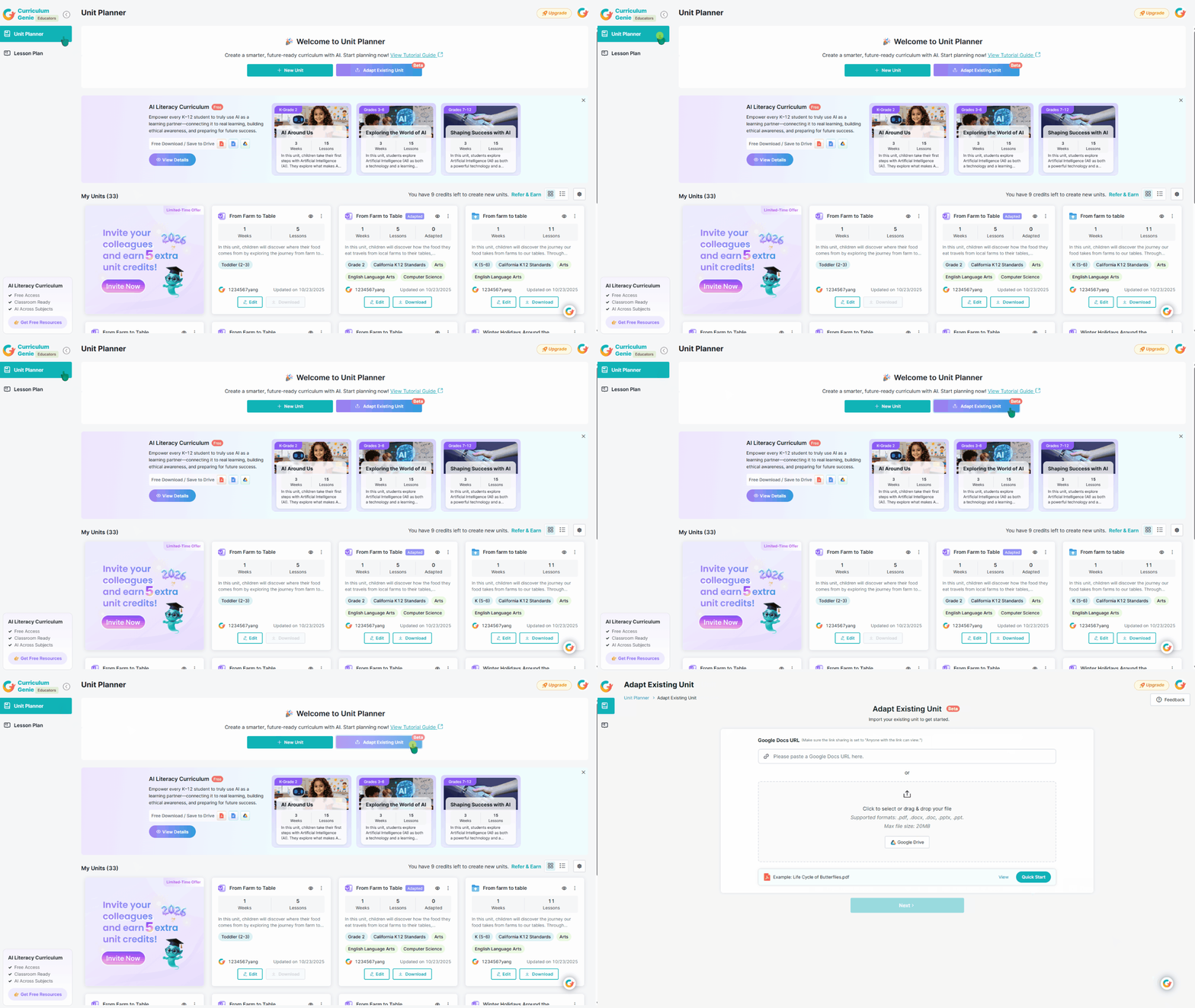
1. Access the Adapt Tool
From the left-hand menu, open Unit Planner and click Adapt Existing Unit.
2. Import Your Unit
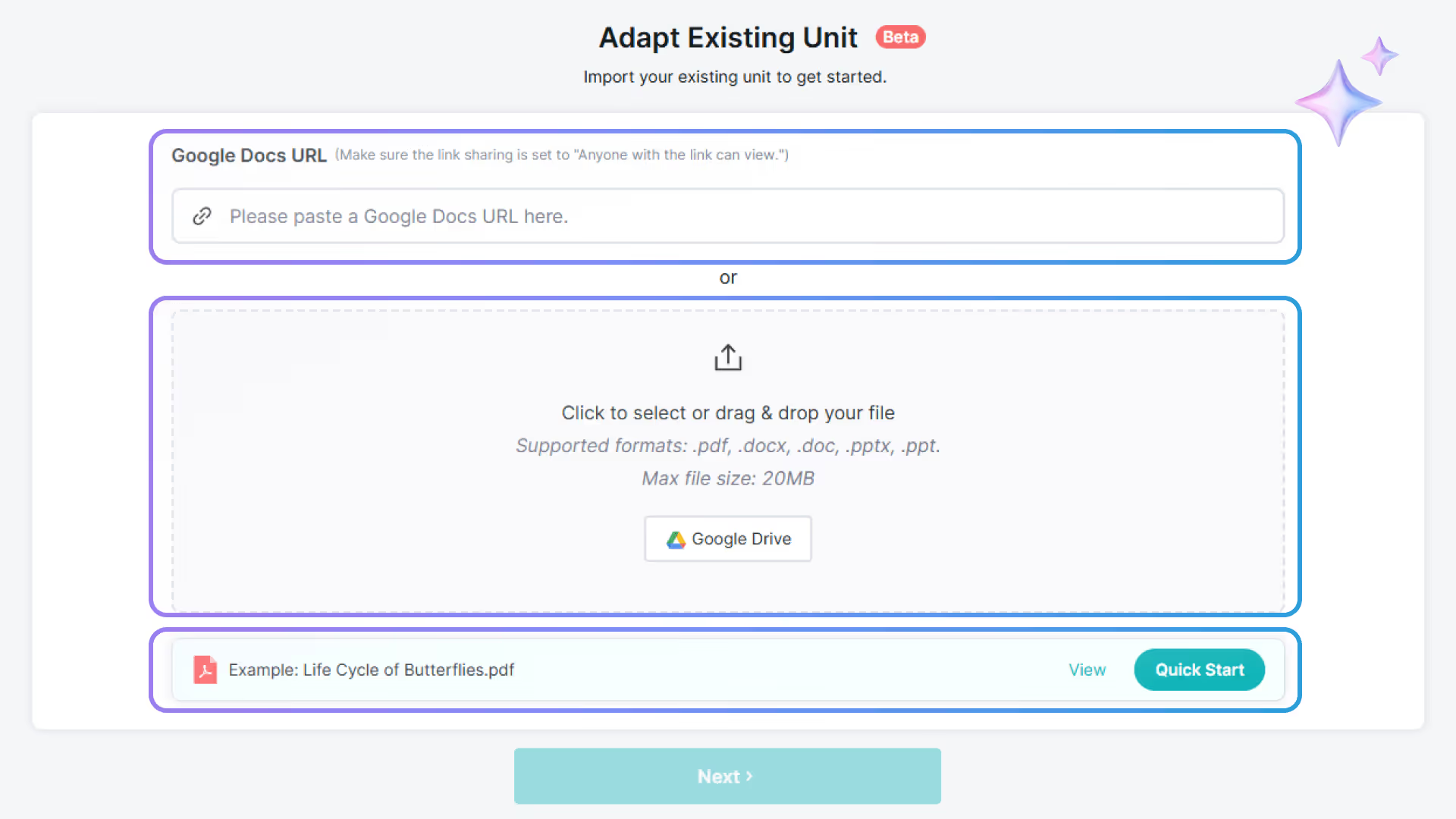
You have two ways to bring your existing unit into the platform (one file at a time):
- Google Docs URL: Paste a link to your document (ensure sharing is set to "Anyone with the link can view").
- File Upload: Drag and drop or select a file from your computer. Supported formats include .pdf, .docx, .doc, .pptx, and .ppt (Max 20MB).
Once you have uploaded a file or pasted a link, click Next to proceed.
Want to try it quickly?
Use the Example Unit provided (Life Cycle of Butterflies) and click Quick Start—no upload required.
3. Review AI Extraction Results
Once imported, the system will show an AI Extraction Preview. This is where you verify the most important information used to adapt your unit, including Unit Information, Weekly & Lesson Structure, and Learning Standards.
What’s read-only on this page:
The extracted unit information and weekly & lesson structure are shown as a preview only and cannot be edited here.
What you can edit on this page:
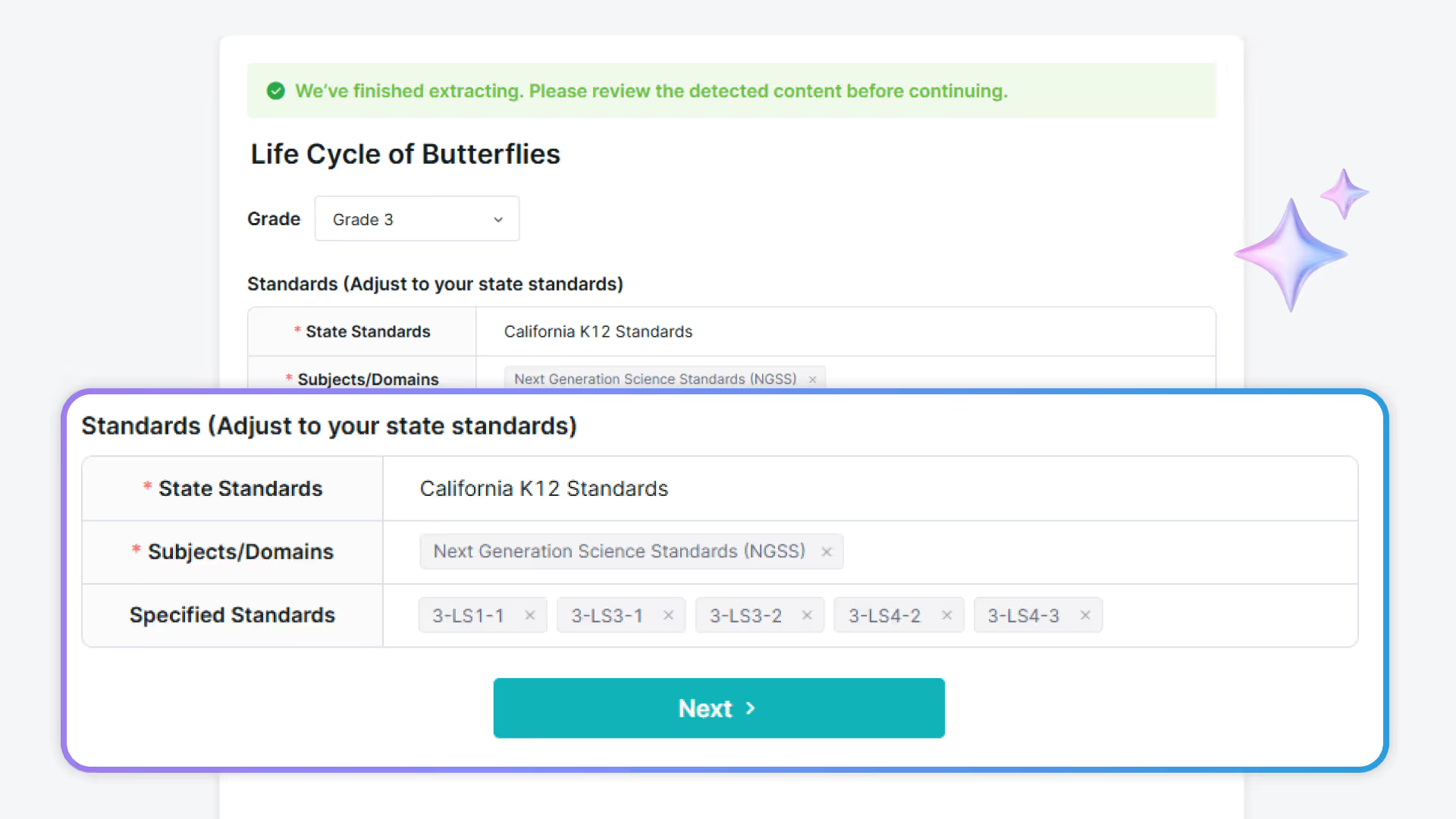
You can confirm or adjust: Grade and Standards alignment. The Standards section will display differently depending on the content of your document:
- Scenario A: Clear State Standards & Subjects/Domains Found
The system will automatically map them to specific standards. Here, you can review and modify the standards if necessary. Click Next to continue.
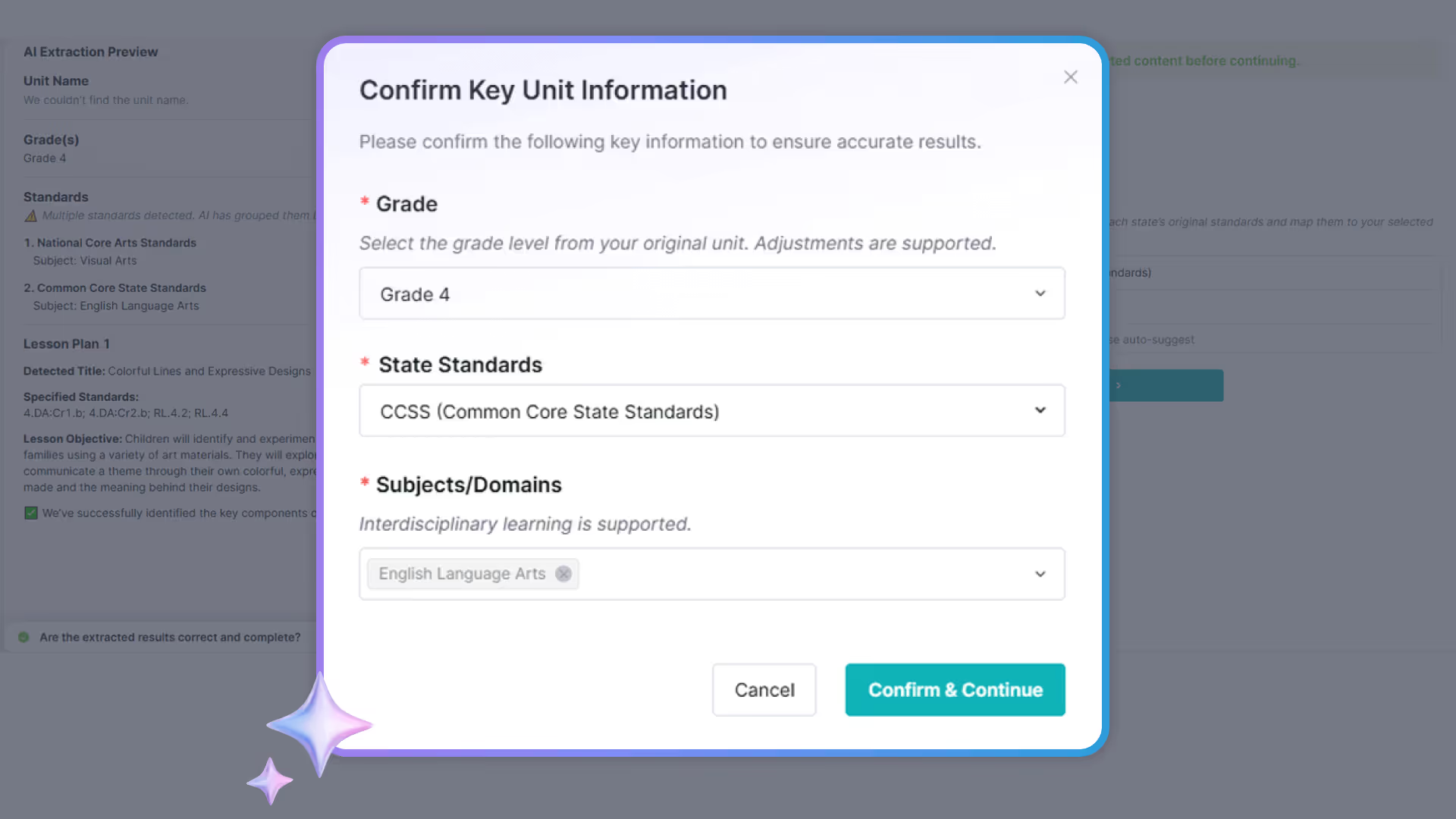
- Scenario B: State Standards and/or Subjects/Domains Not Explicit
A Confirm Key Unit Information window will appear. Here, you should select your Grade, State Standards, and Subjects/Domains. Click Confirm & Continue to let the system match your content to the correct benchmarks.
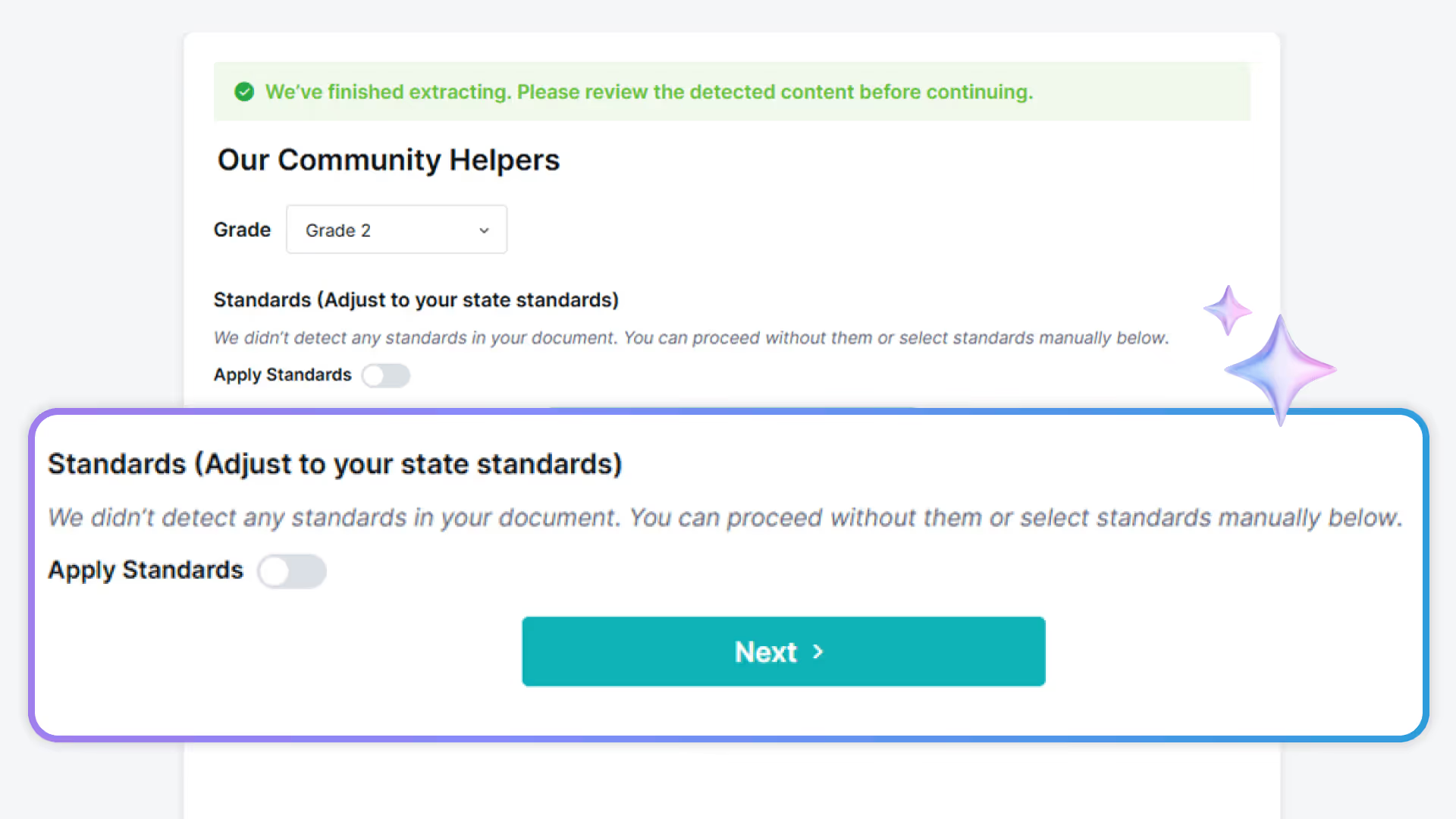
- Scenario C: No Standards Information Found
You will see a tip stating no standards were found. You can proceed without them by clicking Next. Or, toggle on Apply Standards to manually select standards.
Ready to try this step? Upload your unit or start with the example.
4. Select Your Enhancement Mode
You will be presented with two distinct modes to adapt your unit:
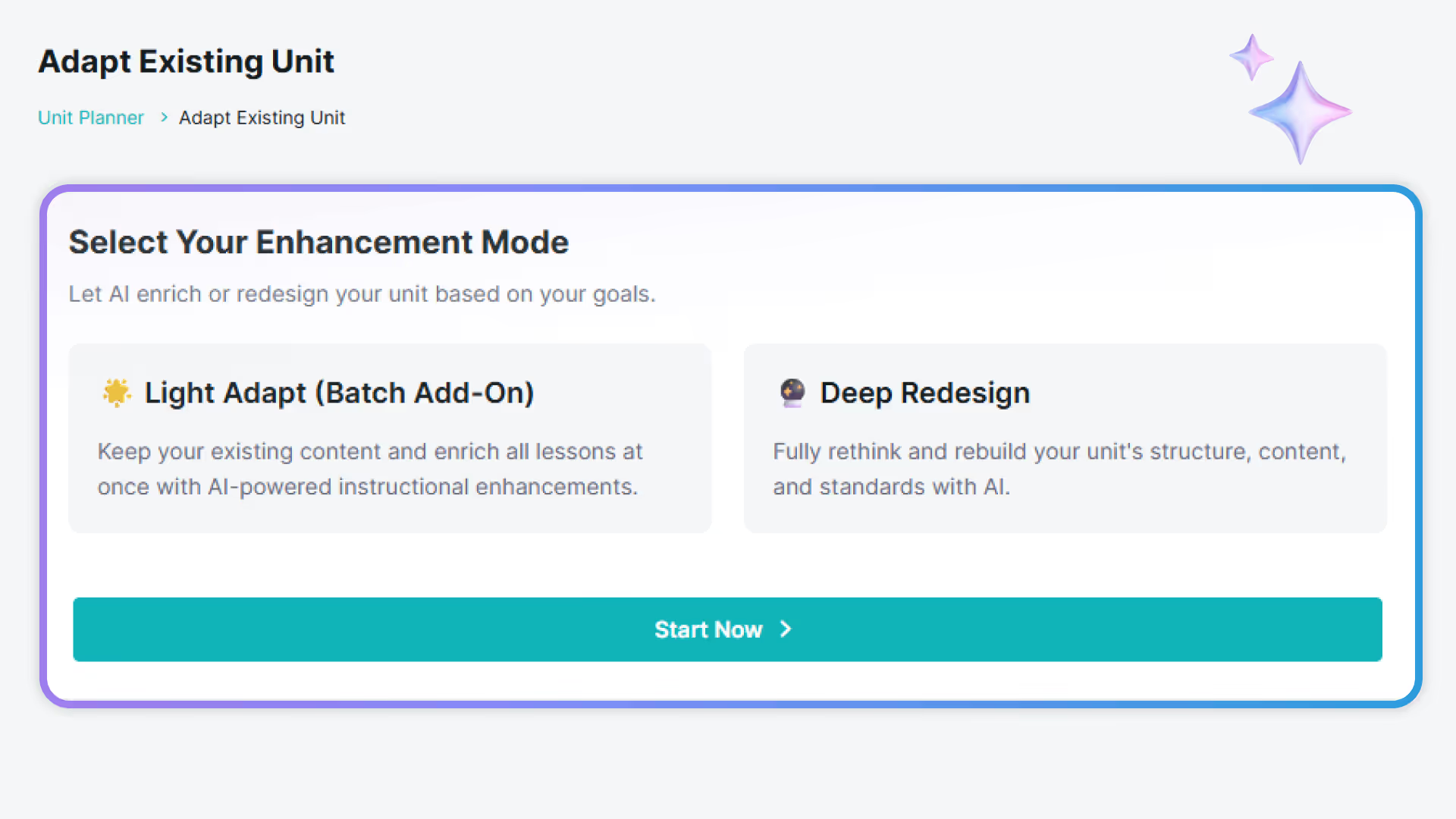
Mode A: Light Adapt (Batch Add-On)
Choose this if you want to preserve your original lesson content and simply enrich it with modern instructional "add-ons."
- What it does: It keeps your original lesson content intact but generates new modules to support it. Furthermore, it uses extracted units and weekly information to fill gaps and improve consistency, so your adapted unit feels complete and classroom-ready.
- Constraints: Light Adapt requires your document to contain at least one lesson; otherwise, please use Deep Redesign.
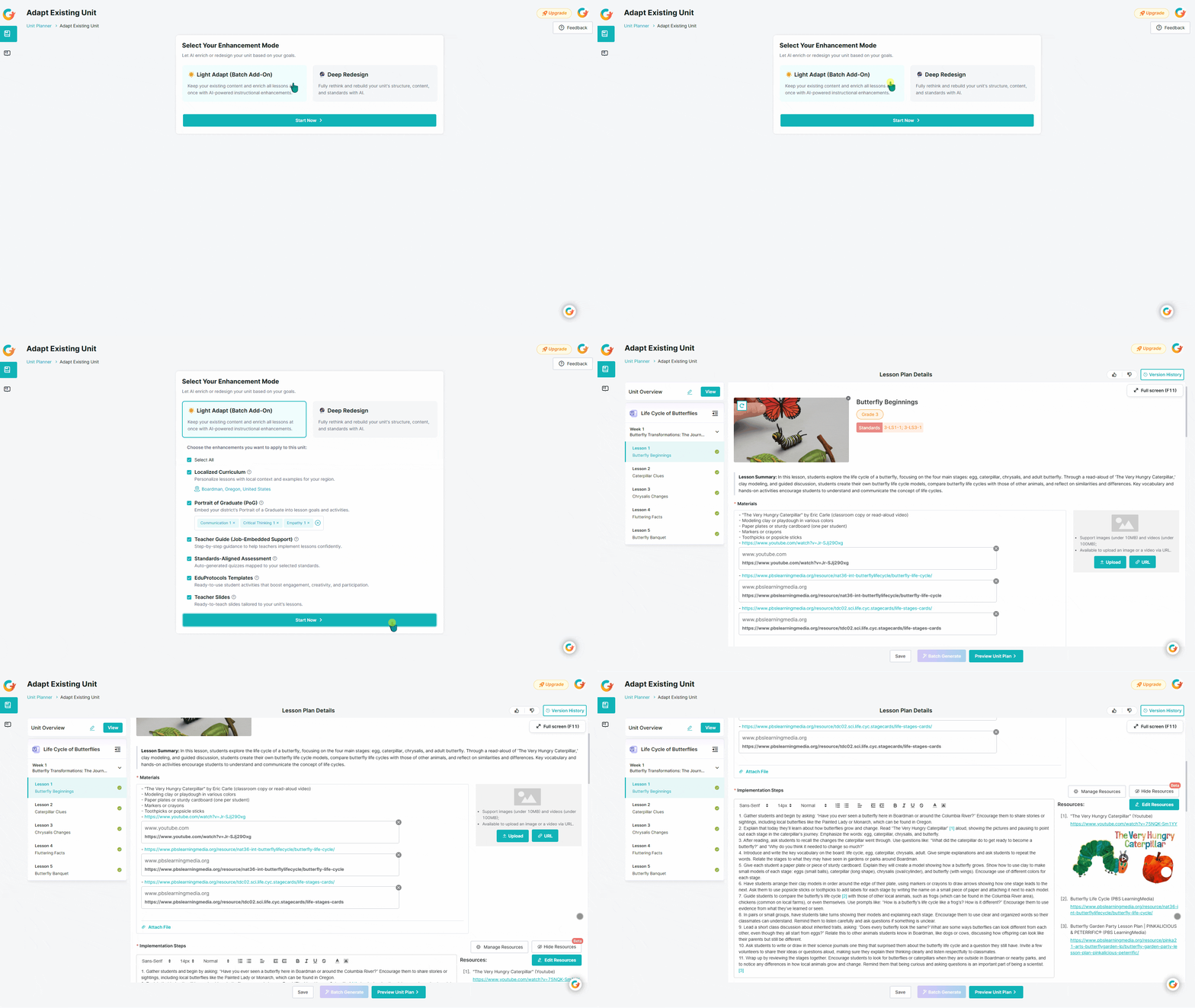
How to run Light Adapt:
- Select Light Adapt (Batch Add-On).
- Choose the Add-Ons you want. Available modules may vary between K-12 and Early Learning, but include: Localized Curriculum, Portrait of a Graduate (PoG), UDL, CLR, Teaching Tips for Standards, Typical Behaviors and Observation Tips, Formative Assessments, and Teacher Slides.
- Click Start Now to generate.
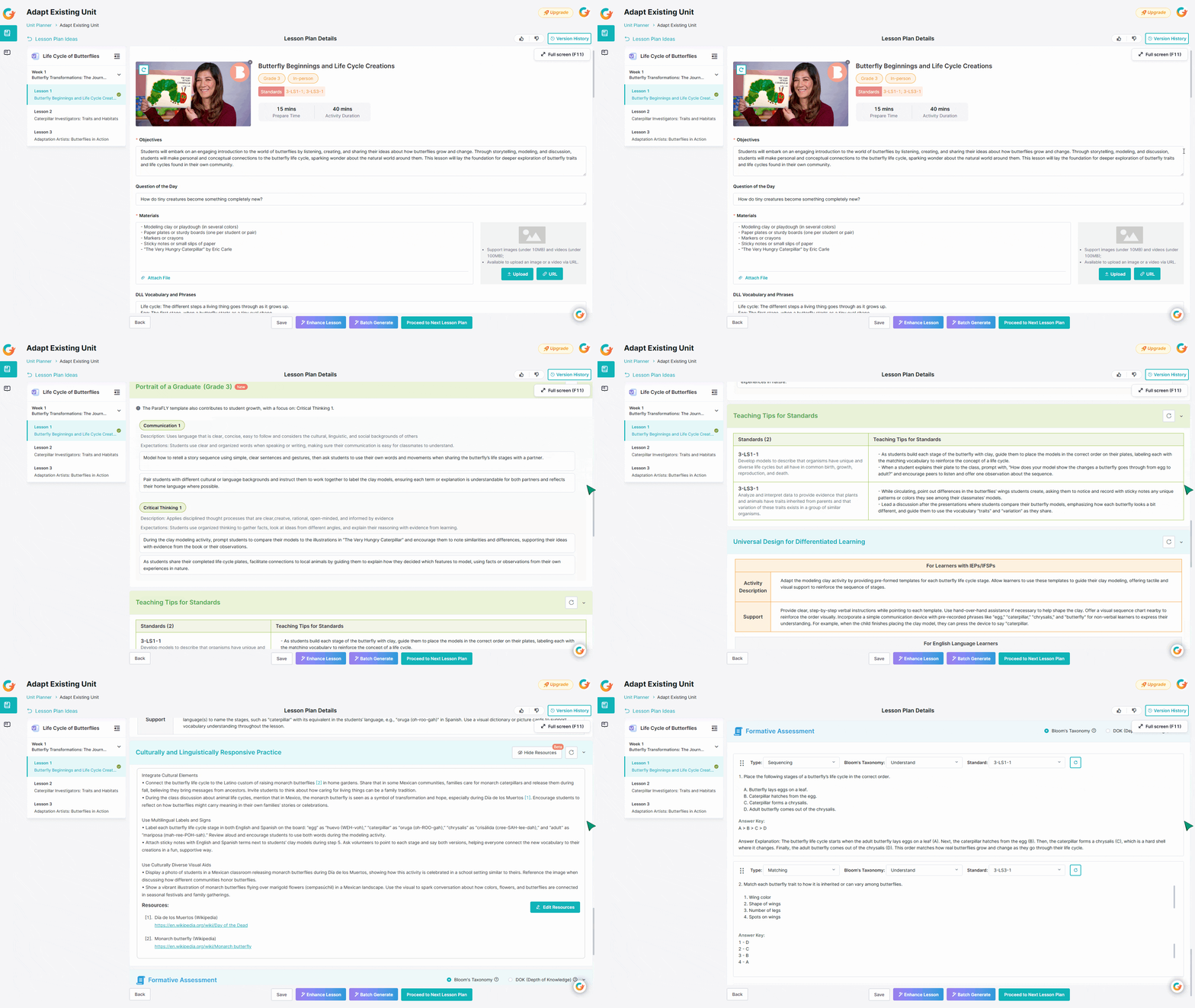
- Review the generated add-ons in Lesson Plan Details.
- Visual Display Note: In the final Lesson Plan Details page, you will typically see a brief Lesson Summary and the new Add-On modules. Your original lesson text is not shown to keep the view clean.
- Exception: If you select Localized Curriculum, the system will refine your original lesson content to integrate local context. In this specific case, the full, localized lesson text will be displayed.
Mode B: Deep Redesign
Choose this if you want to fully rethink and rebuild the unit structure/content more substantially, while saving time by reusing what was extracted.
- What it does: It uses the extracted information to pre-fill the Unit Planner fields, saving you from manual entry while generating a brand-new, optimized version of the unit.
- Constraints:
- Week Count: You can extend the unit duration, but the total weeks cannot be less than the original document's structure.
- Lesson Count: If you increase the weeks, the system defaults to 5 lessons per week. If you keep the week count the same, it will generate the same number of lessons found in your original document.
How to run Deep Redesign:
- Select Deep Redesign.
- Review or adjust the pre-filled unit details (e.g., unit name, unit description, grade, weeks) and configure optional settings like Localized Curriculum, and Portrait of a Graduate (PoG).
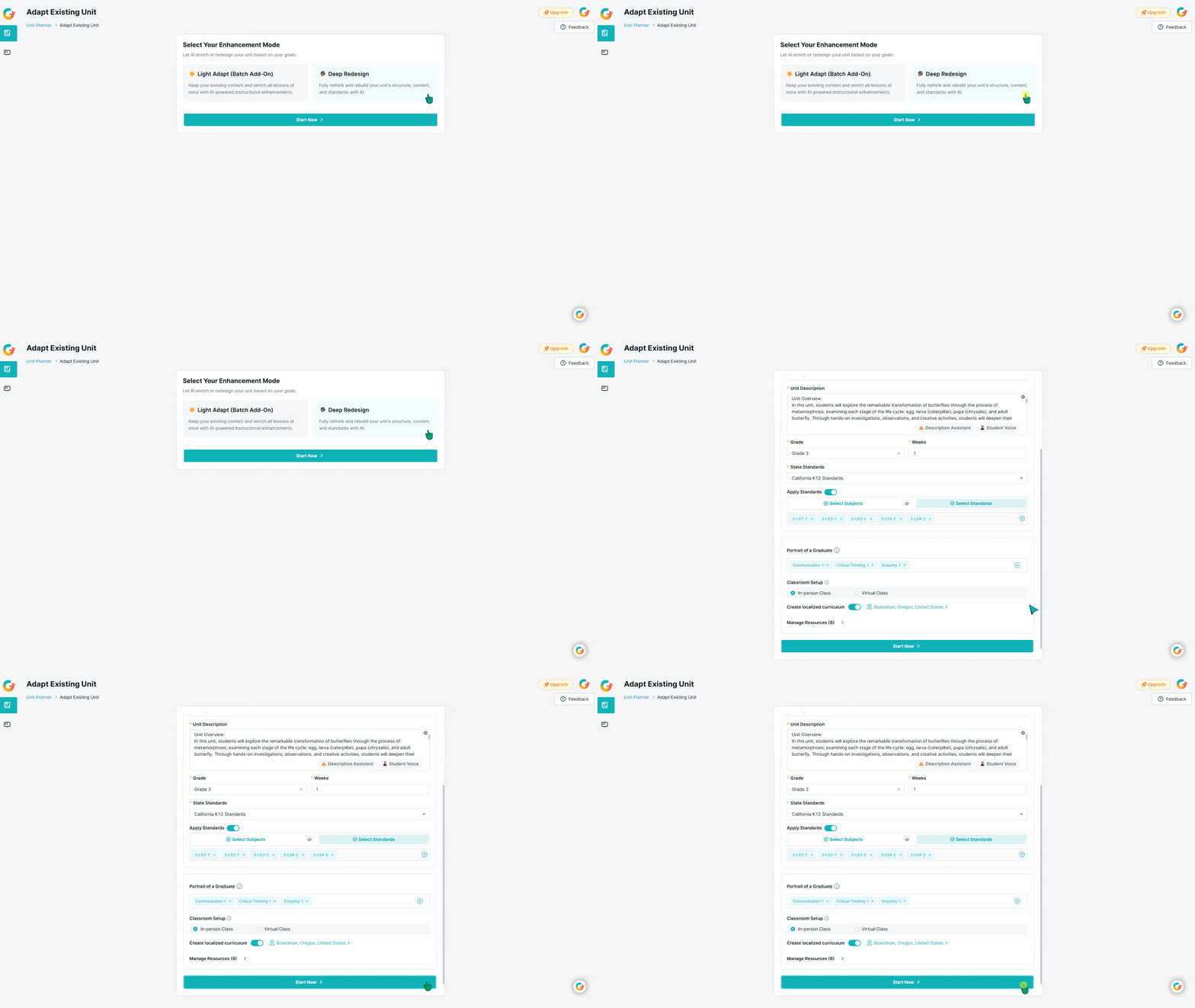
- Click Start Now and work through the full planner flow:
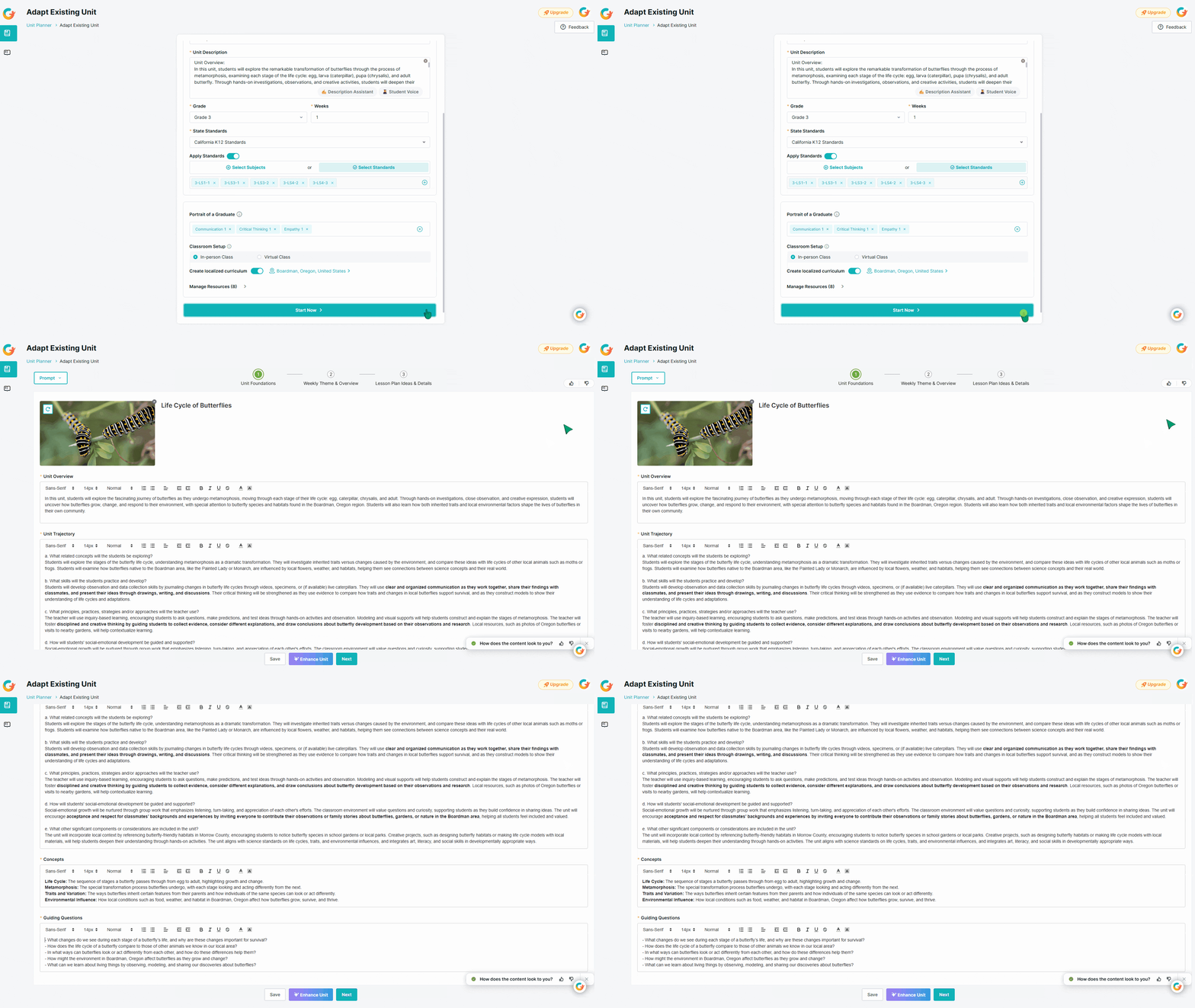
- a) Unit Foundations: Review and edit the unit’s foundational components (e.g., unit overview and trajectory). Use Enhance Unit if you want to refine a specific section. Then Save changes or click Next to proceed.
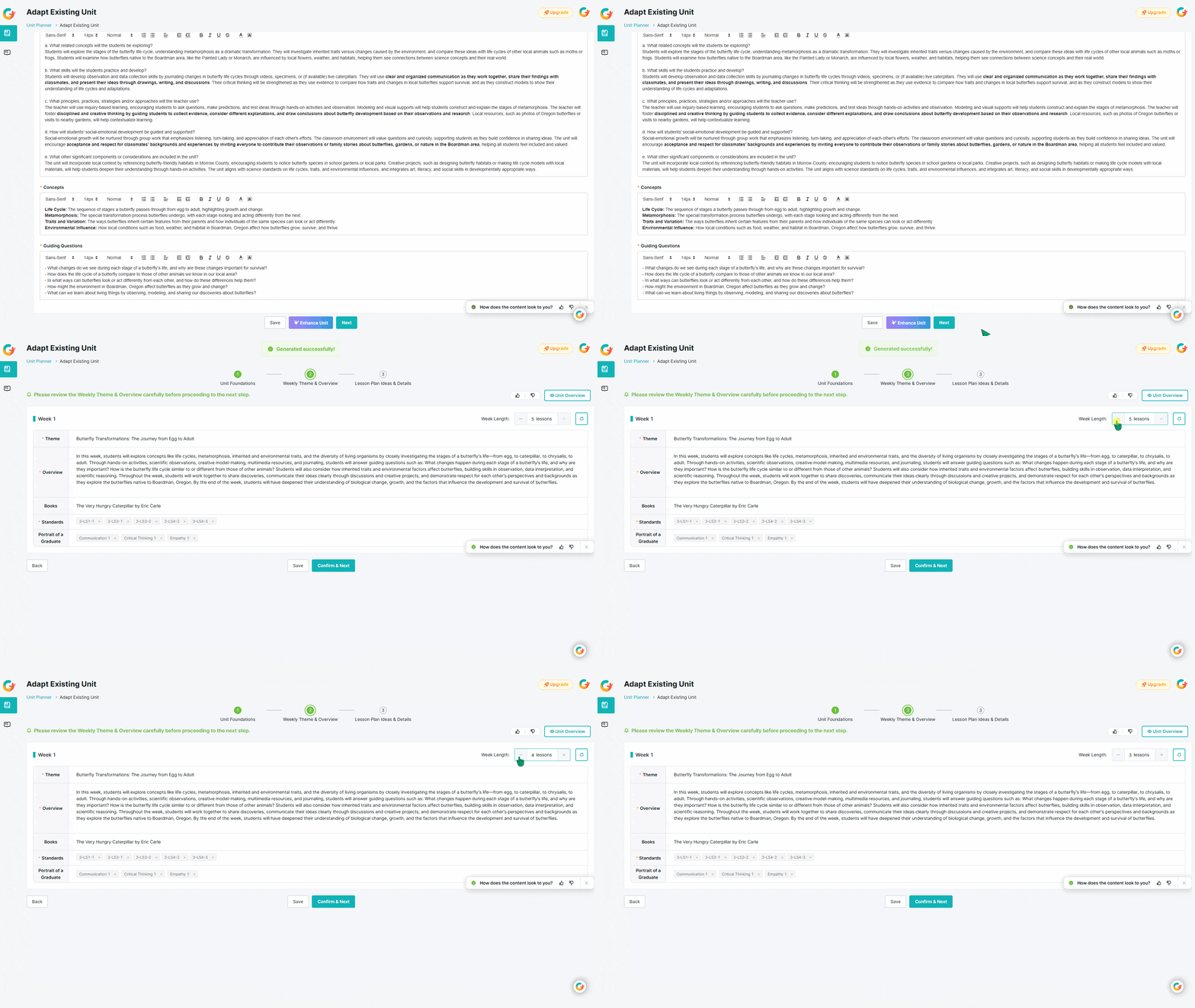
- b) Weekly Planning: Review and edit each week’s plan (e.g., weekly theme, weekly overview, and standards). Adjust the weekly lesson count if needed, then Save changes or click Confirm & Next to proceed.
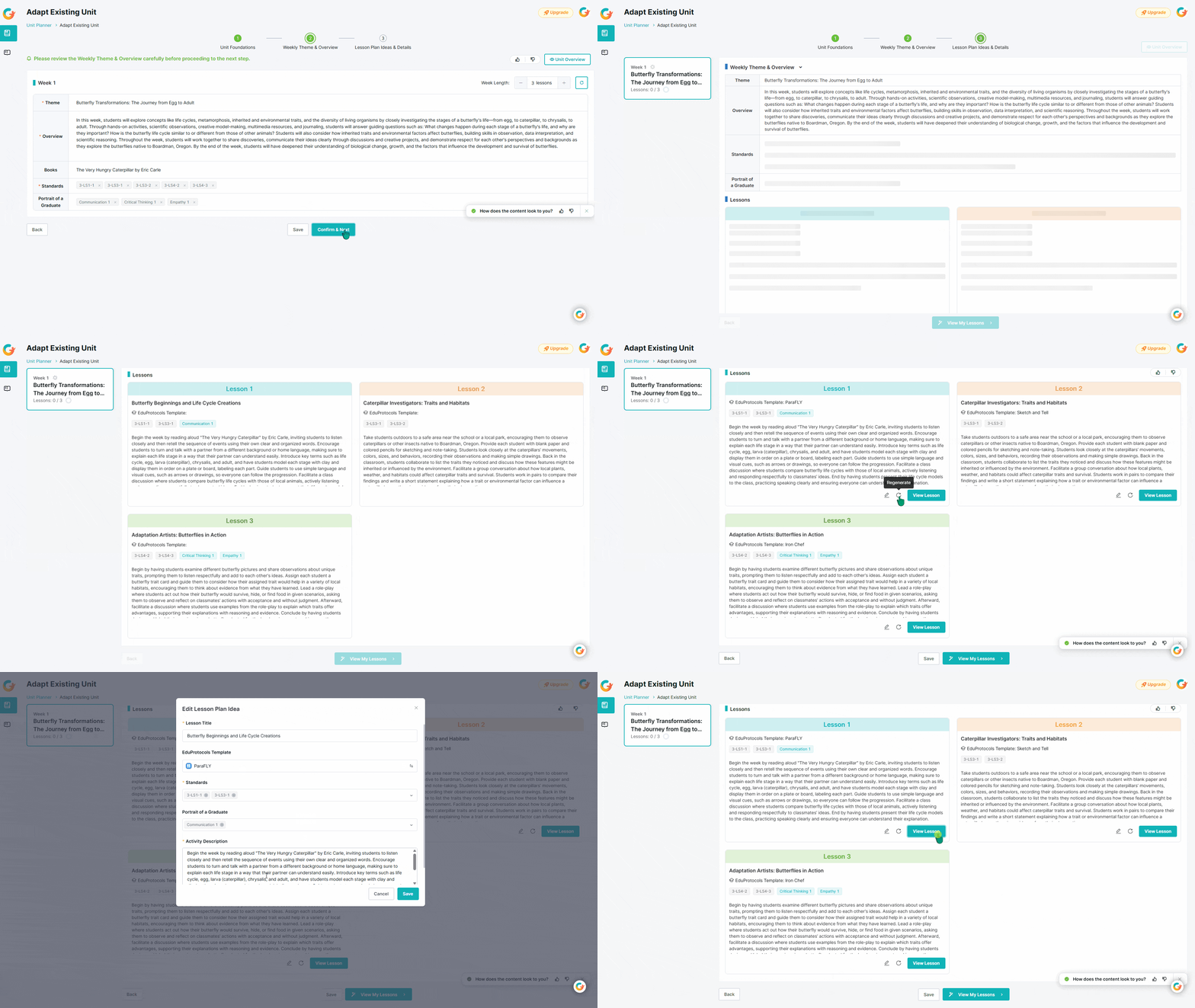
- c) Lesson Plan Ideas: Unlike Light Adapt, this mode generates fresh lesson plan ideas for every slot. Review the ideas, click the Pencil Button to edit, or regenerate an idea to better fit your vision. Then Save changes or View Lesson to generate full lesson details (or View My Lessons for batch generation).
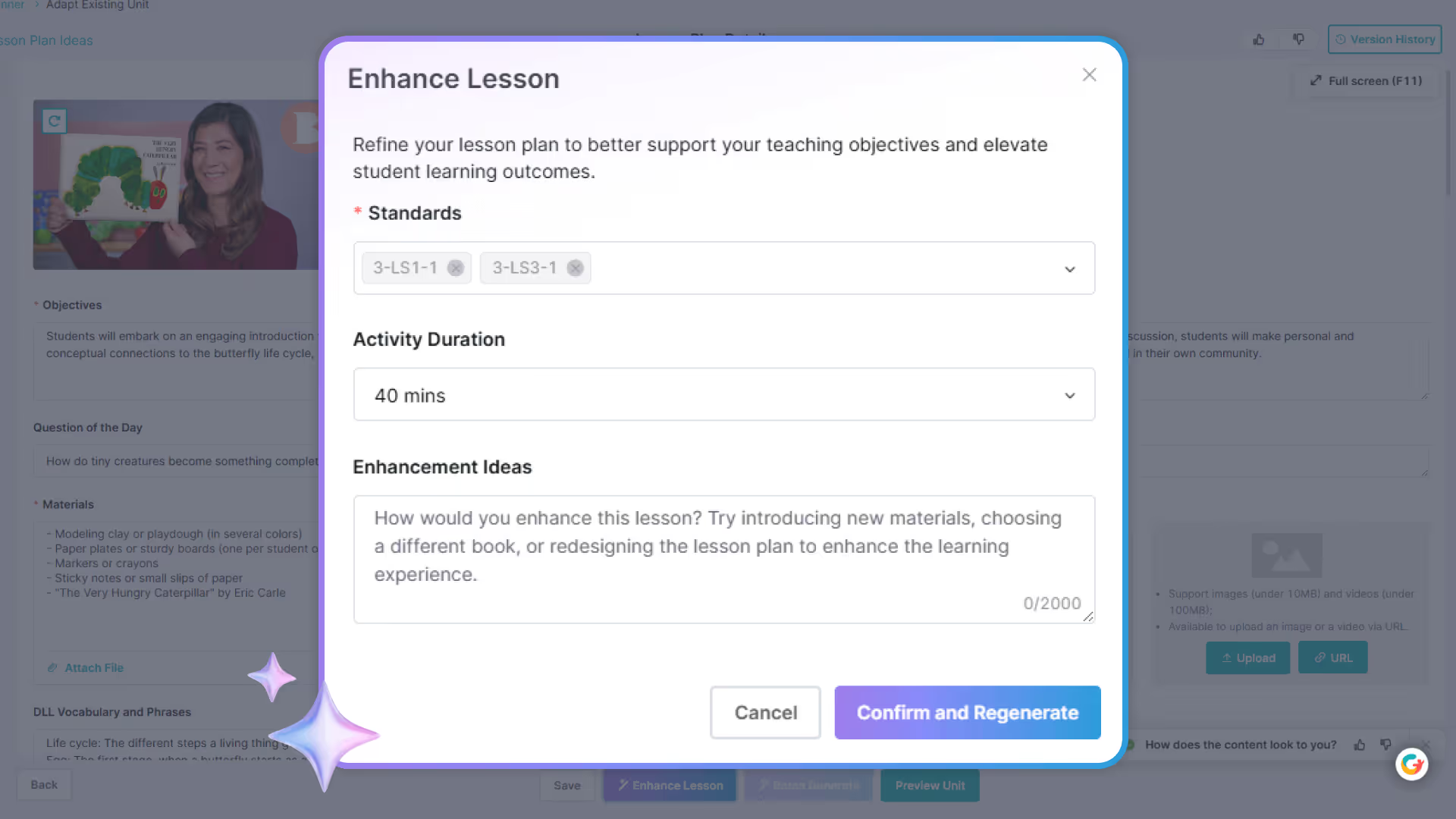
- d) Lesson Plan Details: Generate and review full lesson-level details. If you started by generating a single lesson through View Lesson, you can click Batch Generate here to create the rest of the unit's lessons instantly. You can also use Enhance Lesson to improve specific parts of a lesson.
5. Preview and Export
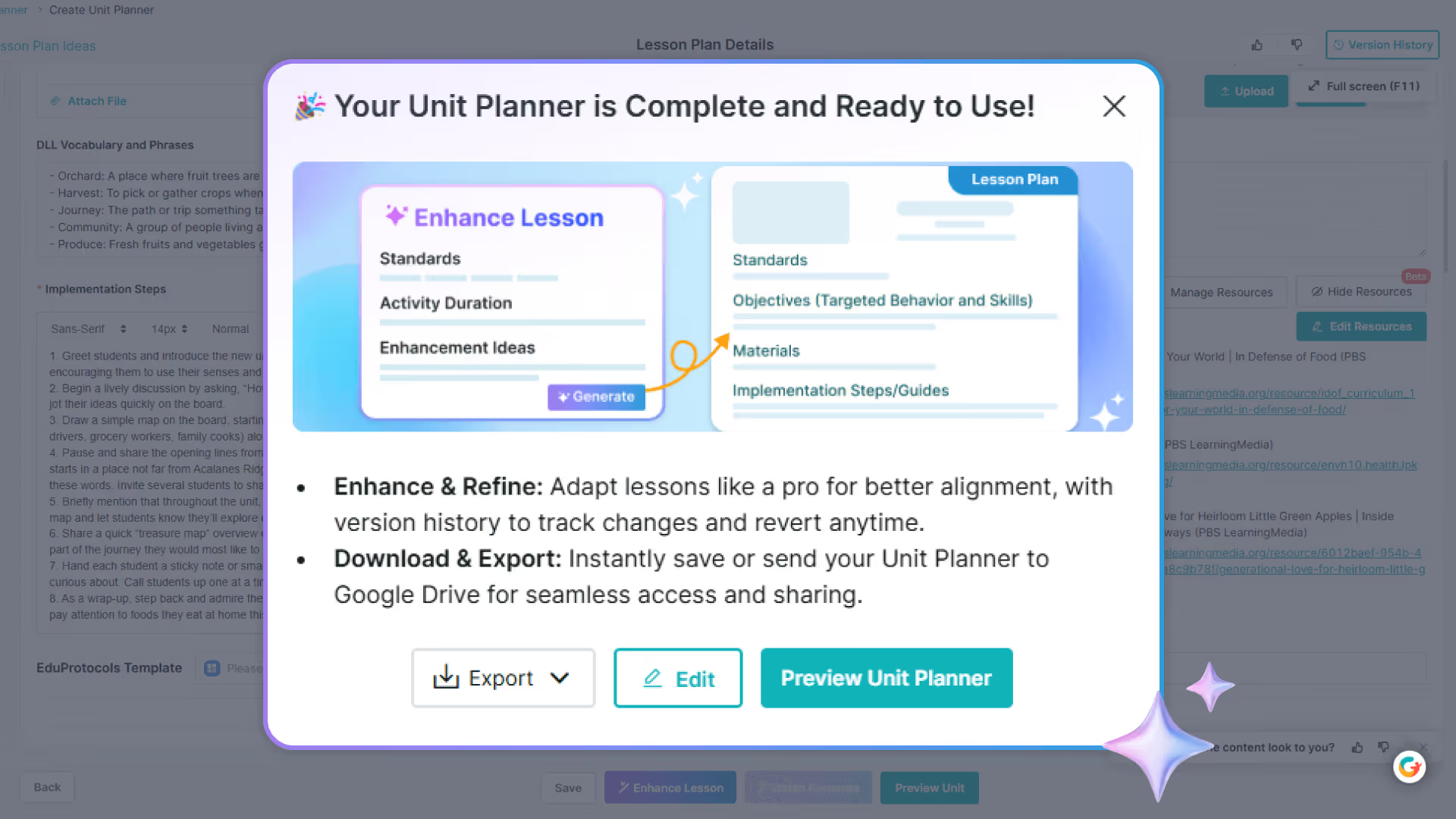
- Preview Unit to see the final unit in a cohesive view.
- Export your newly adapted unit to Google Drive or download it for immediate classroom use, if needed.
By utilizing the Adapt Existing Unit feature, you can transform static documents into a dynamic curriculum. Whether you are looking for a "Light" enrichment or a "Deep" pedagogical redesign, this tool ensures your existing expertise is amplified by modern instructional design, allowing you to focus on what matters most: student engagement and success.
If you need to build a unit from scratch, see how to create a curriculum unit with an AI unit planner.
For lesson-level updates, see how to adapt individual lesson plans with AI.
Start Adapting Your Unit Today
Upload an existing unit or use the built-in example to see how AI can enrich or redesign your curriculum in minutes.
Frequently Asked Questions (FAQs)
Q: What happens if my document doesn't have standards listed?
You can still proceed seamlessly. The system supports documents with or without explicit standards. If none are found, you can simply select your target Subject/Domain. The AI will then analyze your content and automatically recommend the most relevant standards for you. Alternatively, you can manually select specific standards if preferred.
Q: What file types are supported?
We support PDF, DOCX, DOC, PPTX, and PPT files up to 20MB. You can also paste a Google Docs link directly.