How Teachers Can Create or Adapt Lesson Plans with AI

An AI lesson planner empowers educators to generate comprehensive lesson drafts or adapt existing materials by transforming brief prompts into structured, editable plans. The most effective workflow maintains explicit alignment with educational standards, leverages classroom context to localize activities, and treats AI-generated content as a high-quality foundation—allowing teachers to focus their expertise on refining instructional quality rather than building materials from scratch.
This step-by-step tutorial shows how teachers can create or adapt lesson plans using AI. With Curriculum Genie, educators can generate brand-new lessons or tailor existing materials to specific standards, student needs, and classroom contexts. By combining guided inputs, automatic standards alignment, and optional pre-built instructional modules, Curriculum Genie turns hours of manual prep into minutes of AI-powered creation—helping teachers focus more on teaching and student engagement.
Who This Tutorial Is For:
- Classroom Teachers: Looking to save hours on prep time while maintaining high quality.
- Curriculum Leaders: Aiming to standardize high-quality, standards-aligned lesson design across schools.
- Instructional Coaches: Helping teachers differentiate and localize curriculum.
- Time to Value: Most educators can generate a classroom-ready lesson in under 10 minutes.
Key Takeaways
- Dual Creation Paths: Create new lessons or adapt existing ones with one tool.
- Standards Alignment: Automatically align lessons to state frameworks (e.g., California K12).
- Personalized & Localized: Tailor instruction to specific geographic contexts and student backgrounds.
- Instructional Ready-to-Go: Generate activities, teacher slides and assessments in seconds.
- Significant Time Savings: Reduce administrative planning time from hours to minutes.
1. Access the Lesson Creator
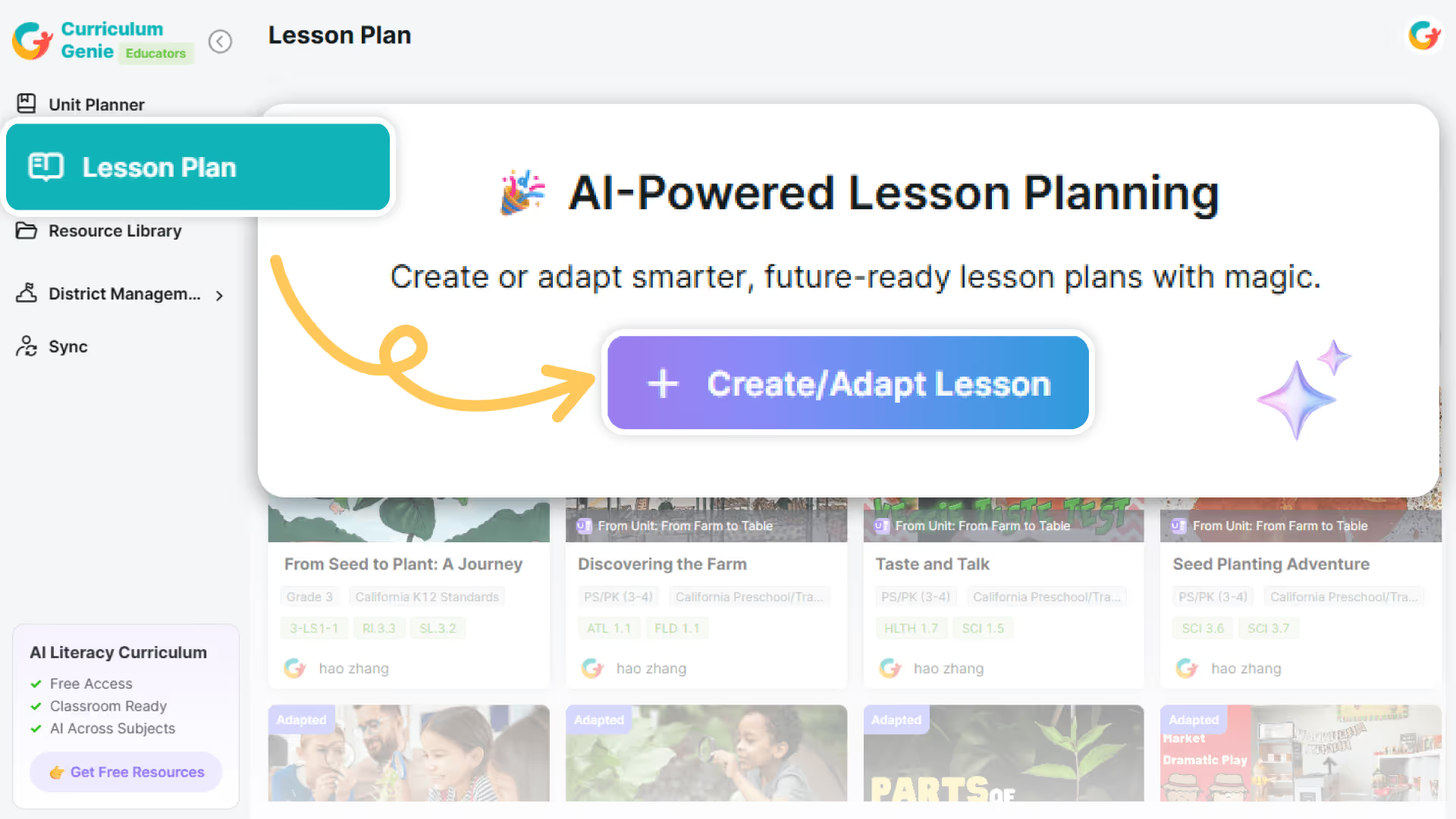
Navigate to “Lesson Plan” from left-hand menu, and click the “+ Create/Adapt Lesson” button to launch this tool.
2. Create a Lesson Plan with AI or Adapt an Existing Lesson
Which do you need today—create from scratch, or adapt what you already have?
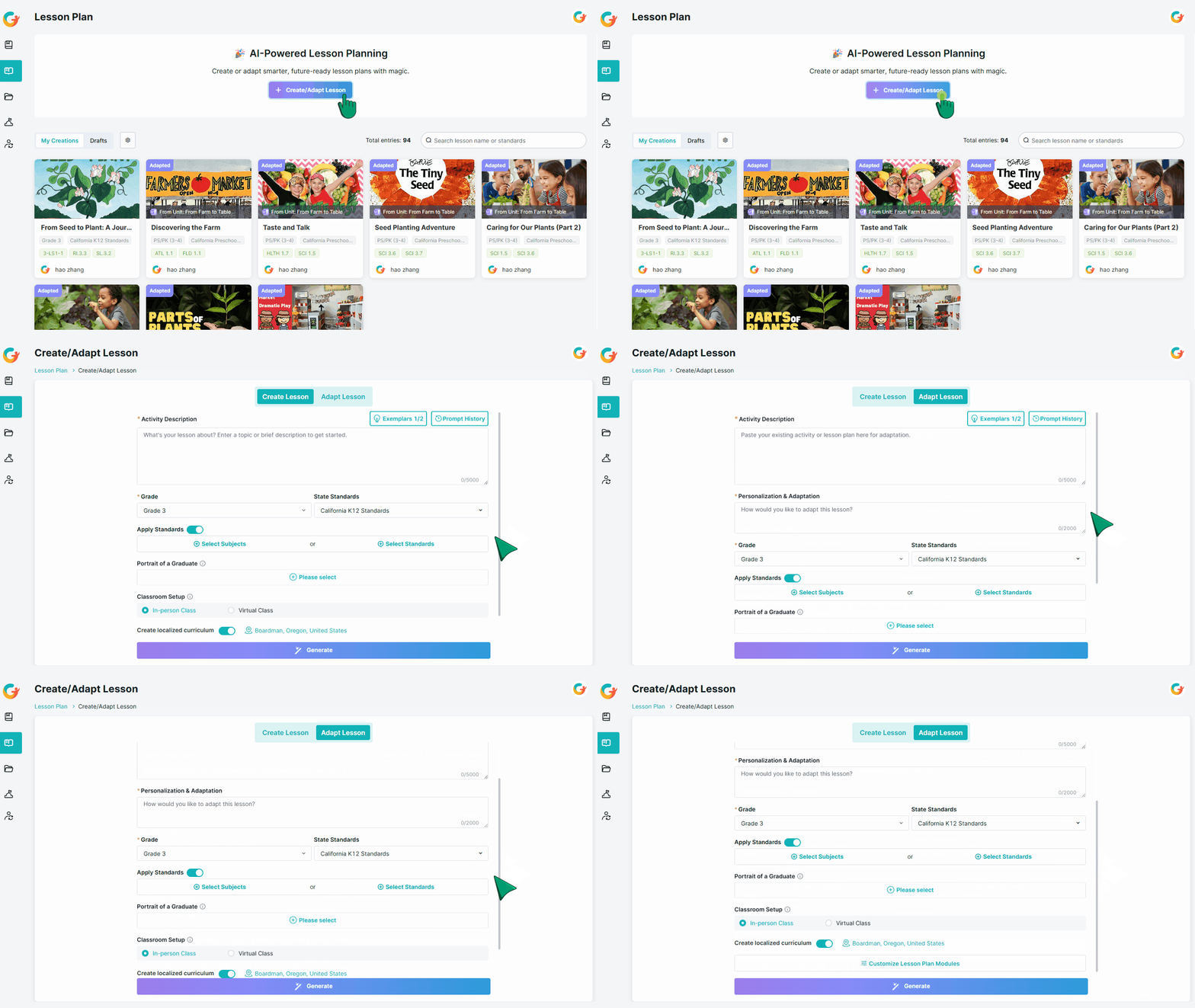
- Create a new lesson plan: Select the “Create Lesson” tab (default) to generate a brand-new lesson based on a topic or objective.
- Adapt an existing lesson plan: Select the “Adapt Lesson” tab to customize your existing ideas, materials, or activities for your specific classroom needs.
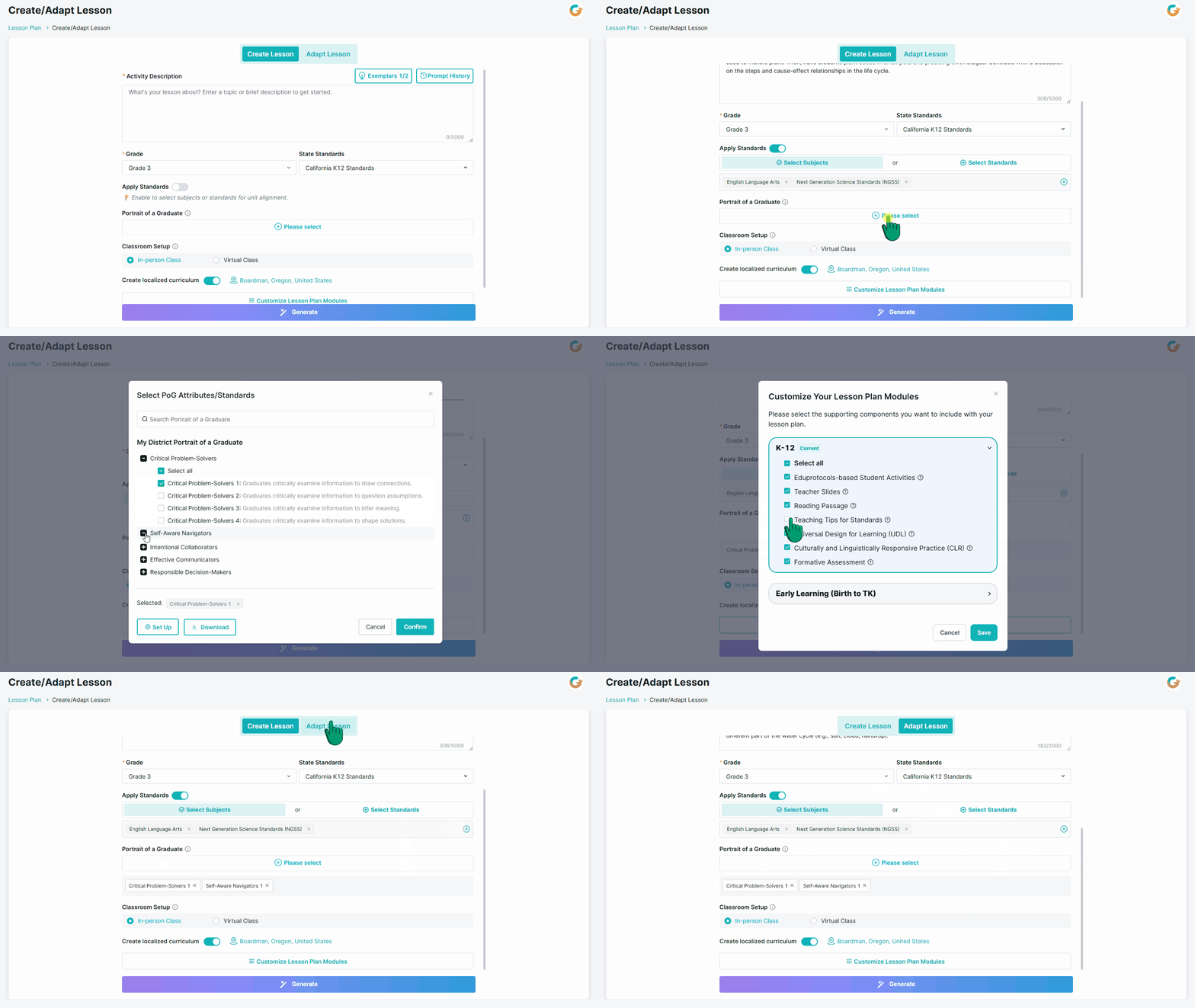
3. Inputs for an AI Lesson Planner (Teachers + Standards + Context)
To ensure the AI generates the most relevant content, provide as much detail as possible in the following fields:
a. Required Fields:
- Activity Description
Enter your lesson topic, a brief overview, core learning objectives or other essential details for the lesson.
Optional: Click “Exemplars” for pre-filled examples or “Prompt History” to reuse past prompts.
- Grade
Choose the appropriate age group. The AI will tailor the lesson according to the selected age.
- Personalization & Adaptation (Adapt-only Field)
Add any custom ideas on how you want to adapt the lesson to your classroom's needs. This helps tailor the lesson for specific student interests, learning styles, or backgrounds to ensure maximum engagement.
b. Optional Settings (Recommended when applicable):
- Apply Standards
Enable this to generate a standards-aligned lesson. Select your State and Framework, then choose:
Select Subjects (select subjects/domains only, and the system automatically recommends the most appropriate standards)
Select Standards (select the specific measures/indicators this lesson will cover)
- Create Localized Curriculum
Enable this to generate lesson plans tailored to your specific geographical location, connecting learning to students’ real-world context for more relevant, culturally responsive, and engaging instruction.
- Portrait of a Graduate
Select the graduate traits you want students to develop. Curriculum Genie will embed these traits into meaningful, real practice opportunities throughout the lesson. This ensures learning goes beyond academics by strengthening lifelong skills students need for future success.
c. Advanced Settings:
- Customize Your Lesson Plan Modules
Customize which lesson components to include in your lesson.
4. Generate Your Lesson Plan
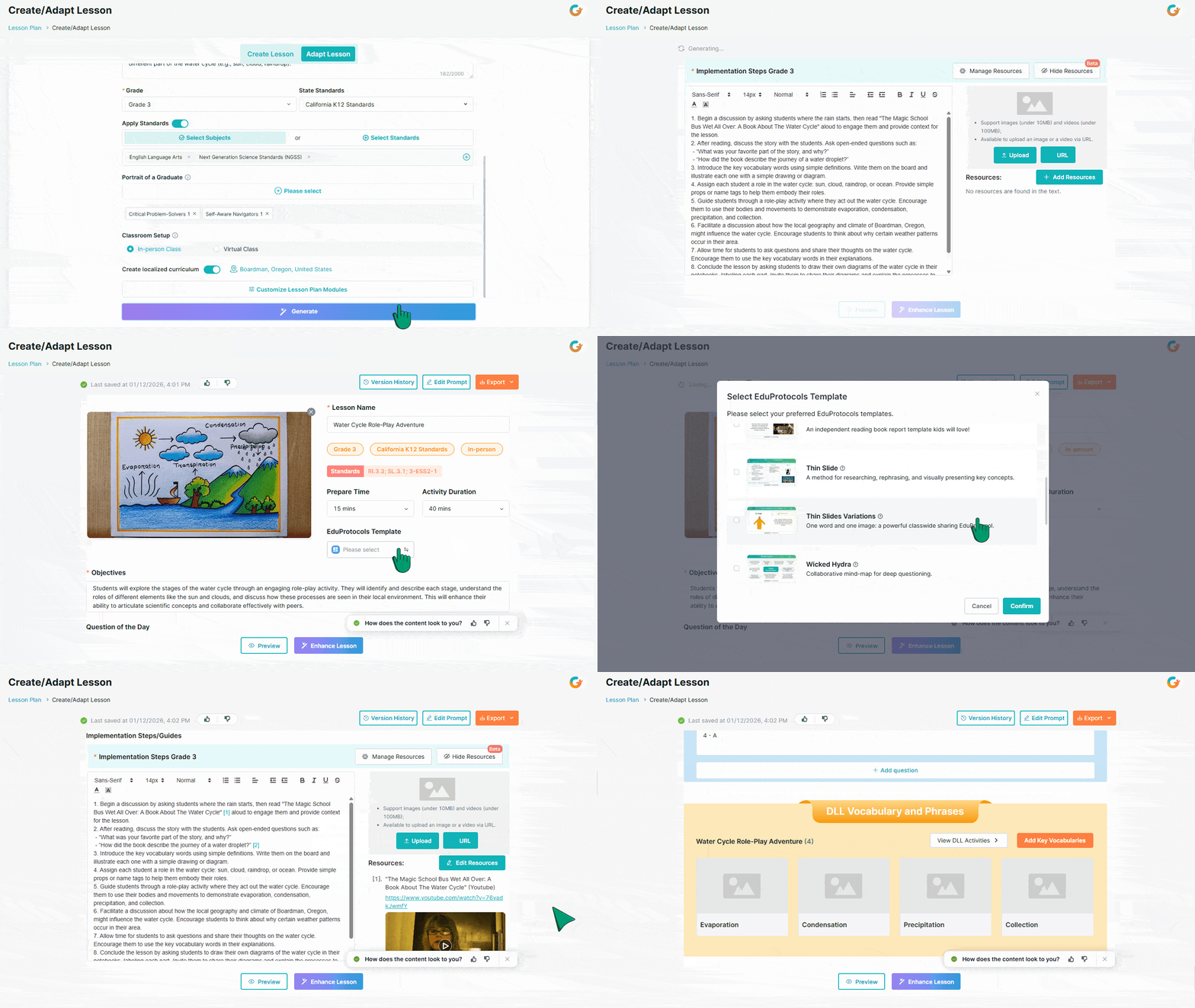
a. All set? Click “Generate” and let AI work its magic.
b. Curriculum Genie will generate the lesson details, including the core lesson plan and any modules you’ve selected. Optional modules may include, but are not limited to:
- Future-Ready & PoG-Aligned Moments: Translate PoG from slogans into specific, measurable expectations and in-class opportunities embedded in tasks, talk, and products, so future-ready skills are actually built—not just named.
- Job-Embedded Support for Teachers: Embed “How do I teach this lesson?” guidance directly into each lesson—concrete teaching tips for the targeted academic standards, UDL/CLR-informed strategies, and notes on typical student behaviors and how to respond—so teachers aren’t left to figure it out alone.
- Standards-Aligned Assessments: Turn every lesson into a standards-aligned check-in, with quizzes built across Bloom’s and DOK levels—making it easy to see true mastery of your academic standards instead of shallow recall.
- Ready-to-Teach Teacher Slides: Instantly transform your written lesson plan into a ready-to-present slide deck—teachers just open, tweak, and hit “present.”
c. After your lesson is generated, feel free to select and apply any EduProtocols activities to bring your lesson to life and enhance student engagement.
- EduProtocols-Based Student Activities: Drop in ready-made activity frames inspired by EduProtocols that boost participation, creativity, and collaboration while still tightly targeting your academic outcomes.
5. Enhance Your Lesson
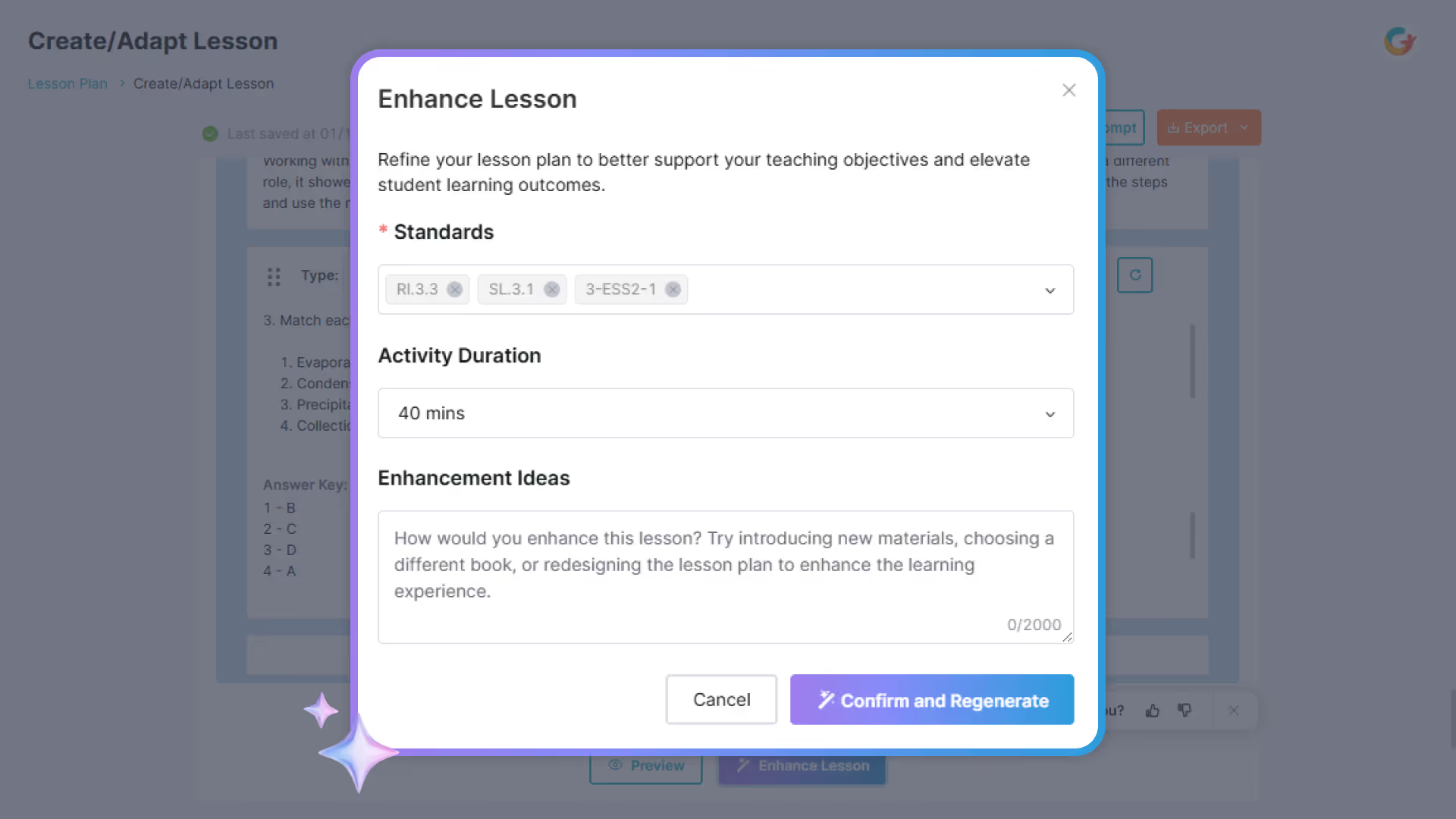
Click the “Enhance Lesson” button at the bottom of the lesson plan to customize the lesson plan details by describing what you want to adjust.
- This will open the Enhance Lesson pop-up, allowing you to:
- Update Standards (Measures): Modify the selected educational standards (measures) to emphasize particular areas of development you want to prioritize.
- Adjust Activity Duration: Change the allocated time for the lesson activity to better fit your schedule.
- Input Adaptation Ideas: Provide specific instructions or describe how you would like the lesson to be adapted.
Note: Use these options to better fit your classroom needs or regenerate the lesson for a different outcome.
- Once you've made your desired adjustments, click “Confirm and Regenerate” to have the AI update the lesson plan based on your new input.
6. Manage Versions and Edit Prompts
Refine, revisit, and perfect your lessons at any time!
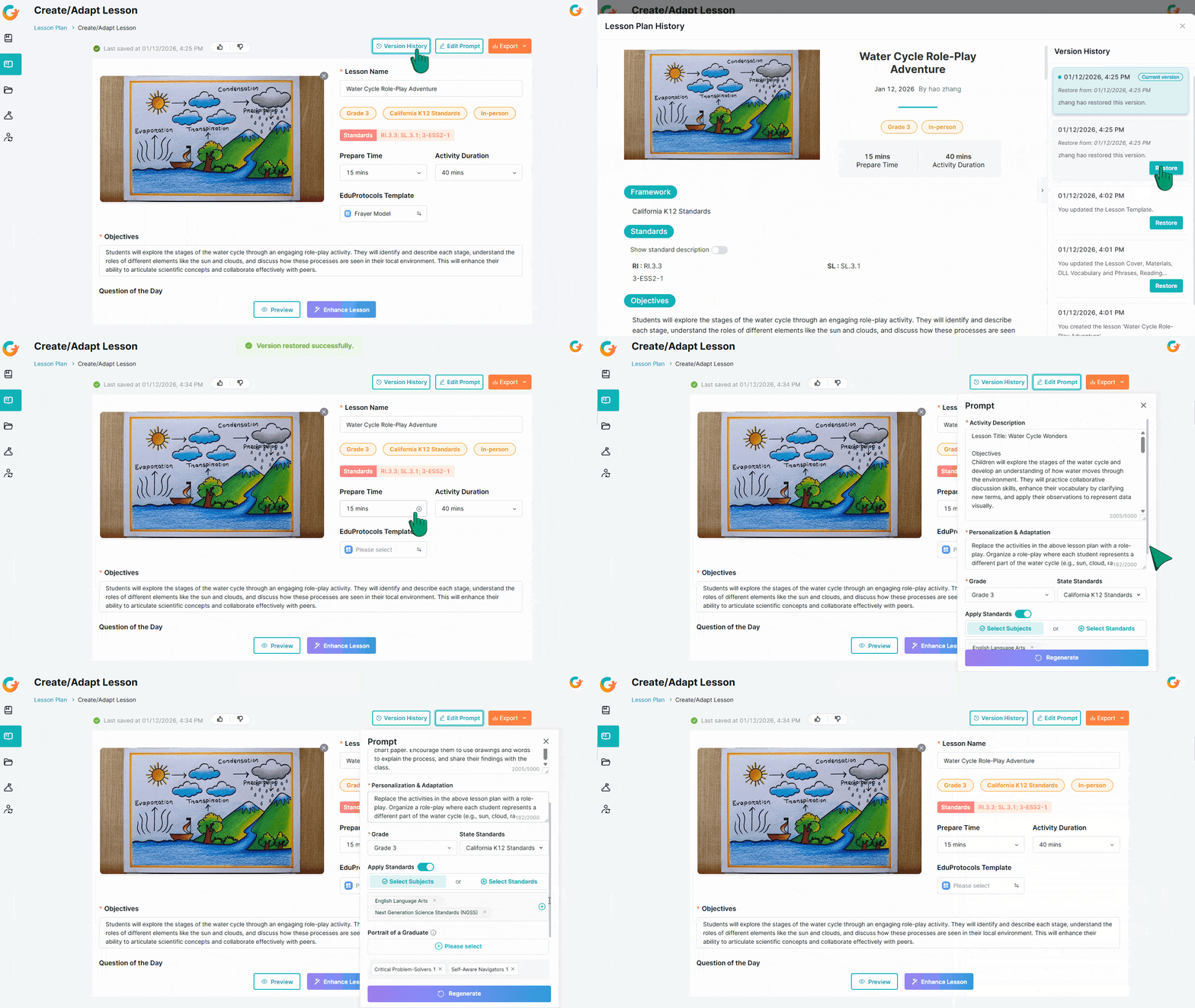
- Version History: Click this at the top to view saved versions with timestamps and click “Restore” to return to a desired previous version.
- Edit Prompt: Click this to modify your original inputs, then click “Regenerate” to create a new version based on the updated prompt.
Embrace the power of Curriculum Genie to seamlessly create or adapt high-quality lessons, allowing you to streamline your planning process and deliver impactful, tailored instruction that inspires student growth and future success!
For longer-term planning, see how to create a full curriculum unit with an AI unit planner.
Ready to get started? Try the exemplar and see it in action.
Frequently Asked Questions (FAQ)
Q1: How does the "Portrait of a Graduate" feature move beyond simple labels?
Instead of just naming a skill like "Critical Thinking," the AI generates "Future-Ready Moments." These are specific, actionable instructional prompts and student tasks embedded within the lesson that require students to demonstrate that competency, turning abstract traits into measurable classroom practices.
Q2: What is the strategic advantage of using "Adapt" over "Create"?
While Create builds an optimized path from scratch, Adapt focuses on "Instructional Evolution." It allows you to take legacy materials and instantly modernize them by adding rigorous standards alignment, Universal Design for Learning (UDL) & Culturally Responsive (CLR) elements, and engagement frames like EduProtocols without losing your original expertise.
Q3: Can I improve or regenerate the lesson after it’s generated?
Yes. You can use the “Enhance Lesson” feature to improve the lesson, use the “Edit Prompt” button to change your initial requirements and regenerate it, or click the “Version History” to restore any previous versions.