
How to Create High-quality Curriculum Units in Minutes with AI

An AI unit planner helps teachers create a complete curriculum unit by turning standards, learning goals, and context into a structured sequence of lessons, assessments, and instructional supports. When used well, AI for teachers reduces manual planning time while keeping unit design reviewable, standards-aligned, and adaptable to local needs. The most effective approach treats AI output as a draft—so educators refine instructional quality rather than building units from scratch.
Curriculum Genie’s Unit Planner is a powerful, all-in-one solution that simplifies unit planning for educators. With AI support, you can create, organize, and monitor high-quality instructional materials (HQIM) in minutes—reducing planning time while strengthening standards alignment, student engagement, and instructional quality. This step-by-step tutorial walks you through the process from start to finish.
Follow the steps below to build an entire curriculum unit in just 8 minutes:
1. From the left-hand menu, open Unit Planner and click New Unit.
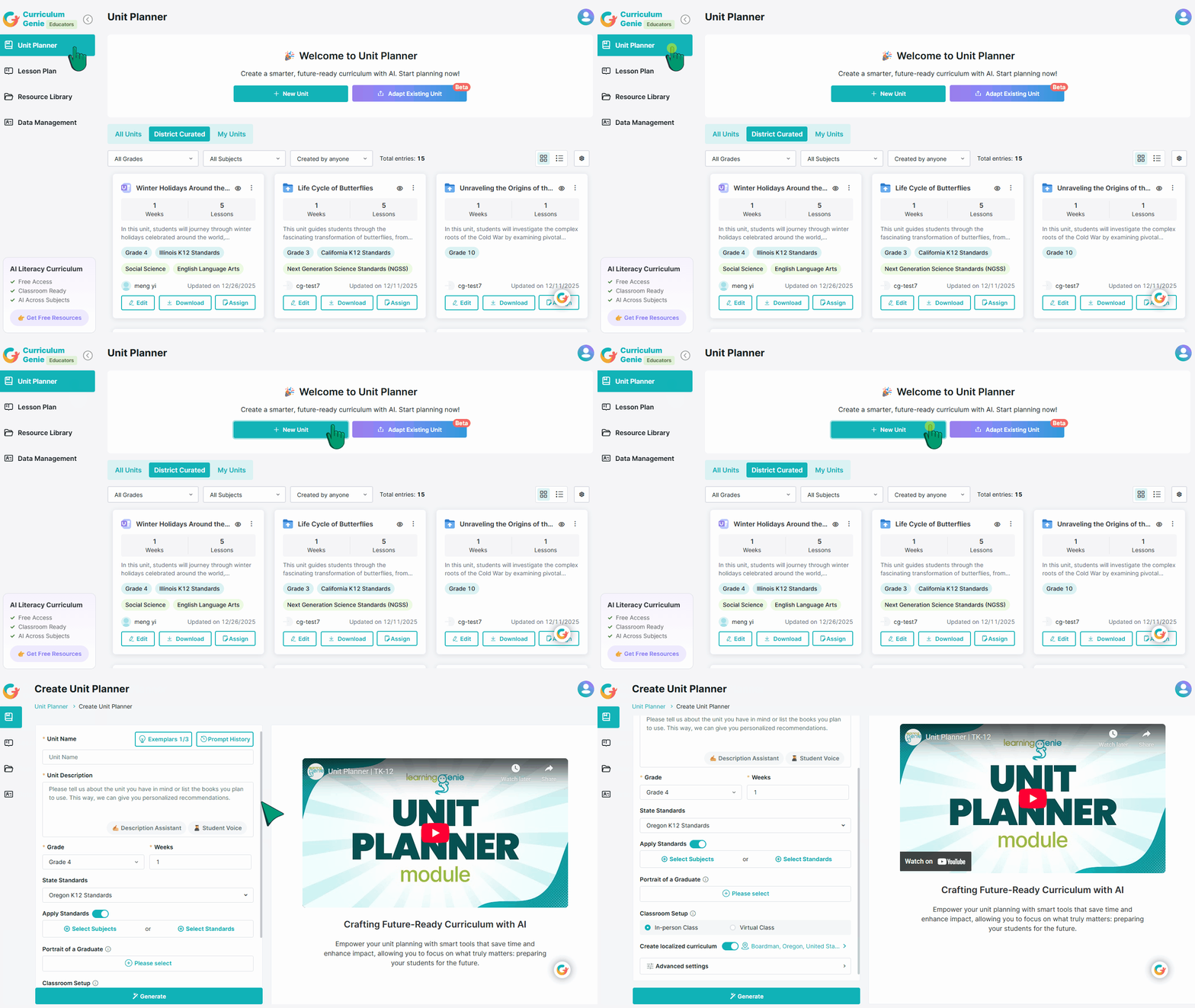
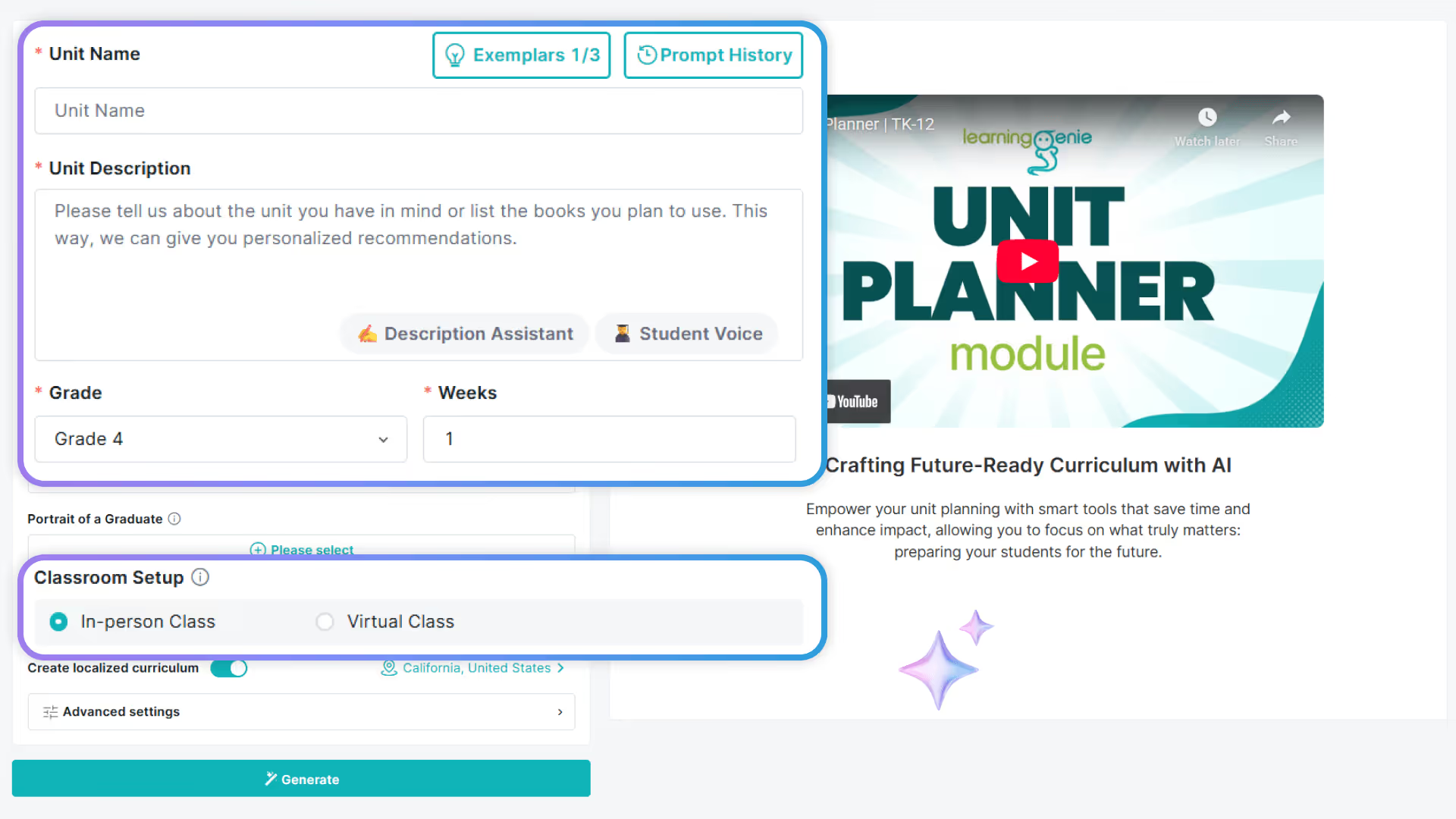
2. Fill in the unit details & filters
These fields help Curriculum Genie understand what you want to teach.
Required Fields:
- Unit Name: Give your Unit a name, you can use the main topic to name it
- Unit Description: Describe what you want students to learn and experience in this unit. The more specific you are, the better the generated unit plan will match your goals.
💡 Use Description Assistant to quickly generate a strong description by answering 2 questions. You can also enable Student Voice to ensure learning experiences reflect student interests and agency. - Grade: Select the correct grade level. Curriculum Genie will automatically adapt the unit structure, language complexity, and activities based on students’ developmental stage.
- Weeks: Choose how many weeks the unit will run. This determines pacing, number of lessons, and the depth of learning experiences.
- Classroom Setup: Select In-person or Virtual. Curriculum Genie will adjust instructional strategies accordingly.
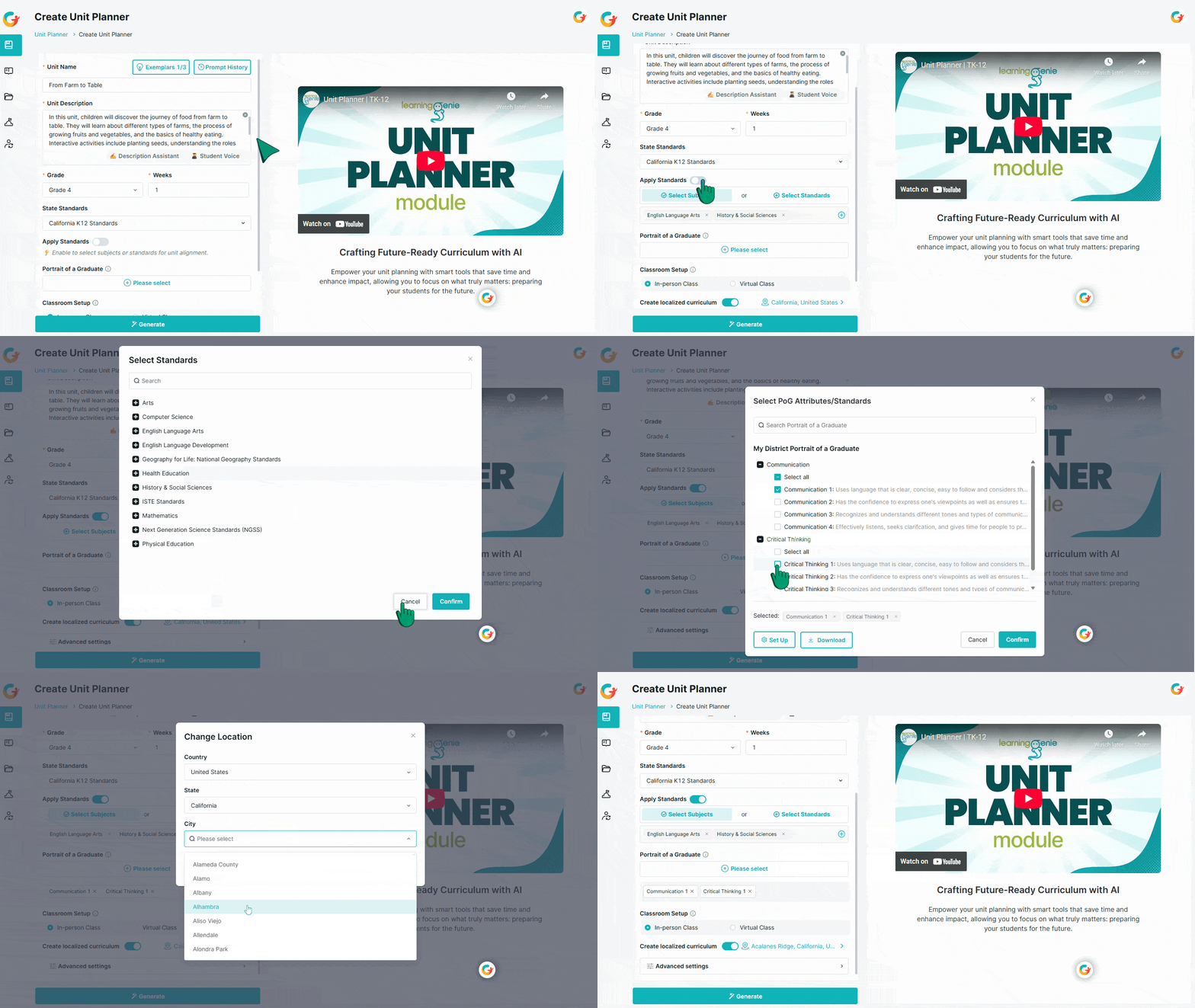
Optional Settings (Recommended when applicable):
- Apply Standards
Enable this to generate a standards-aligned unit. Select your State and Framework, then choose:
a. Auto-adapted standards (select domains only, and the system automatically recommends the most appropriate standards.)
b. Specific standards (select domains and measures/indicators) - Create Localized Curriculum
Enable this to generate unit plans that connect learning to students’ real-world context, so lessons feel more relevant, culturally responsive, and engaging. - Portrait of a Graduate
Select the graduate traits you want students to develop, Curriculum Genie will embed these traits into meaningful, real practice opportunities throughout the unit. This ensures learning goes beyond academics by strengthening lifelong skills students need for future success.
Advanced settings:
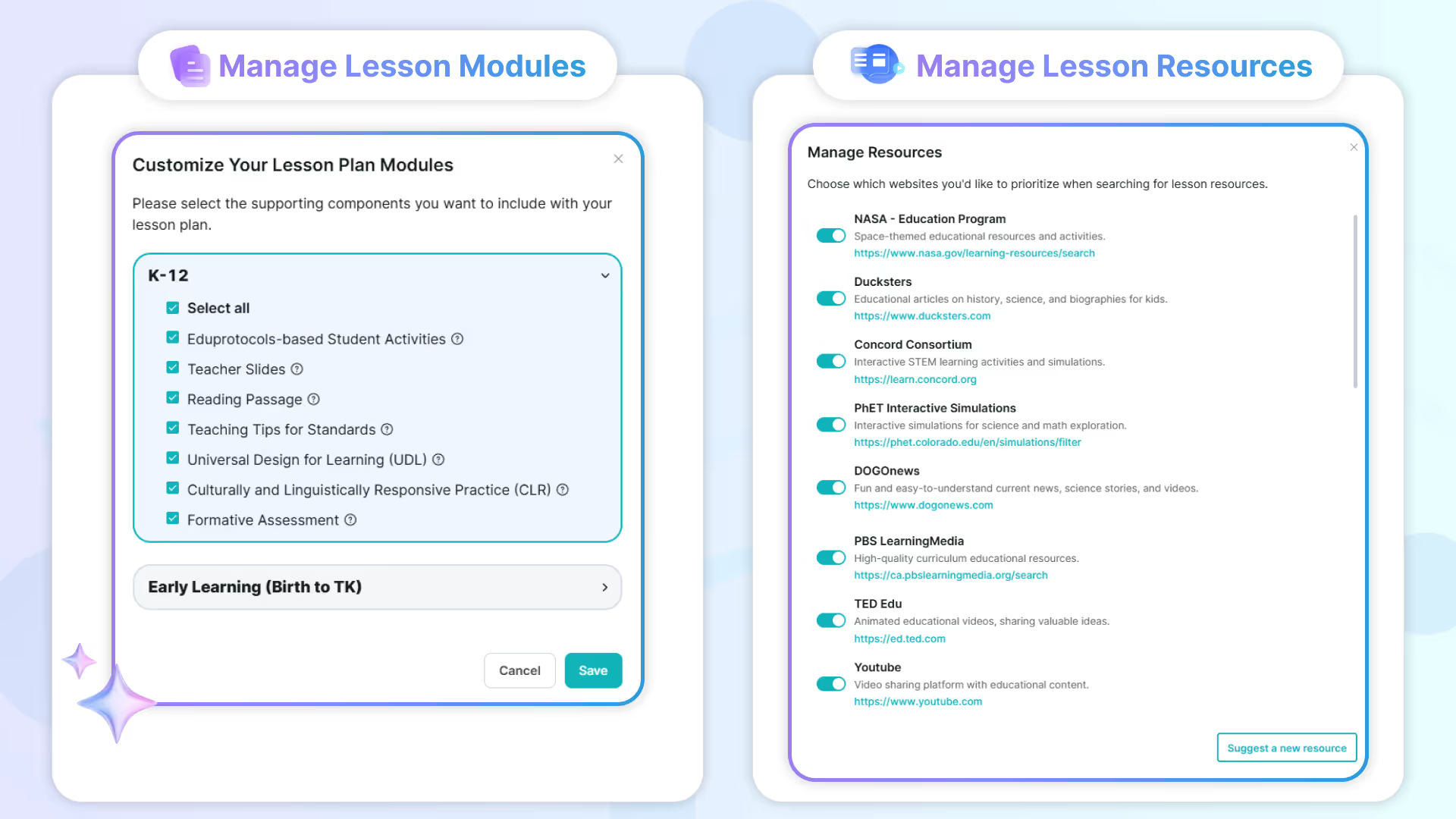
- Manage Lesson Modules: Customize which lesson components to include in each lesson.
- Manage Lesson Resources: Choose which websites or sources Curriculum Genie should prioritize when searching for lesson resources.
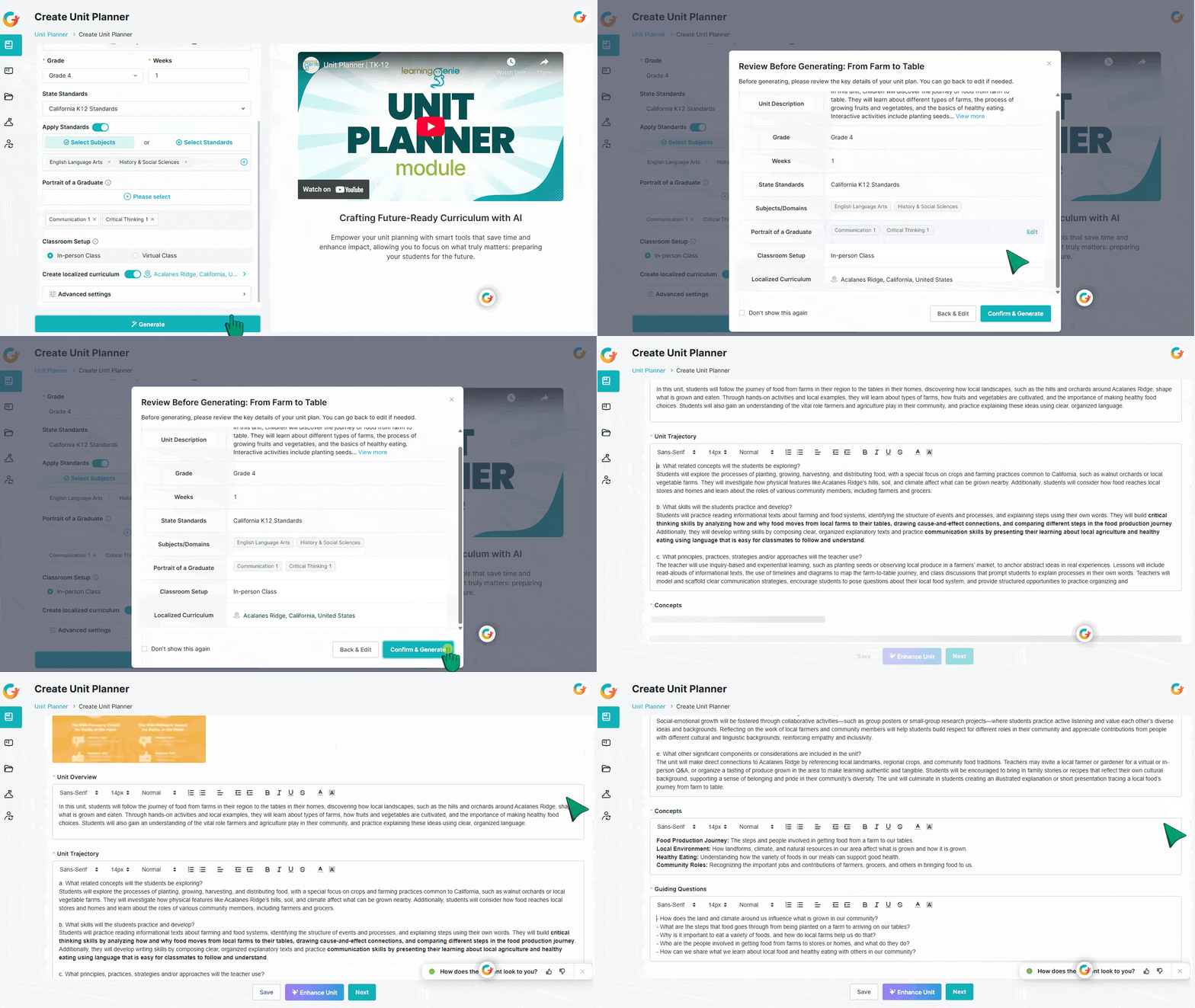
3. Generate Unit Foundations
Click Generate to create the basic structure or the unit's foundations.
Note: Review the information and settings you’ve entered, and make edits as needed before generating.
Once confirmed, you’ll receive an overview, unit trajectory, key concepts, and guiding questions. If you’d like to customize the unit foundations, click Enhance and enter your preferred adjustments. When you’re satisfied, click Next to proceed, or Save to continue later.
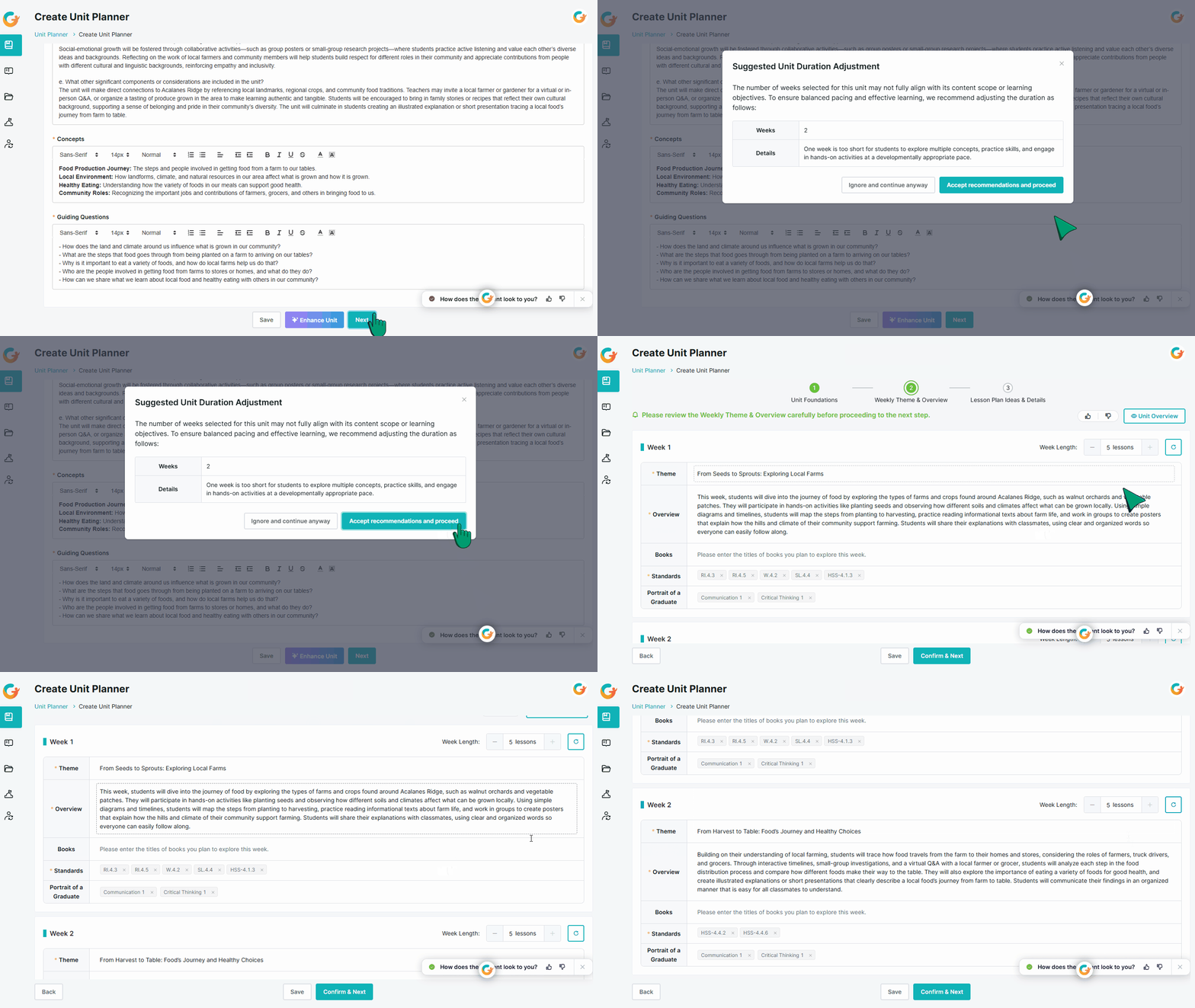
4. Generate and Review Weekly Plans
After proceeding with the unit foundations, you can now confirm and generate the weekly themes, along with their overview, books, relevant standards, PoG traits (if enabled) for each week. Use the Lessons counter to set the desired number of lessons per week.
Note: You can update—add, remove, or change anything as needed—or regenerate the details for a specific week to keep content fresh and aligned with your objectives.
Once everything is ready, click Confirm & Next to finalize.
5. Generate and Review Weekly Lessons
After confirming all the weekly themes, the tool will generate lesson ideas for each week.
Review the generated lesson ideas for each week. To make edits, click the Pencil Button at the bottom right corner of each lesson idea. You may also choose to regenerate a lesson idea for the week.
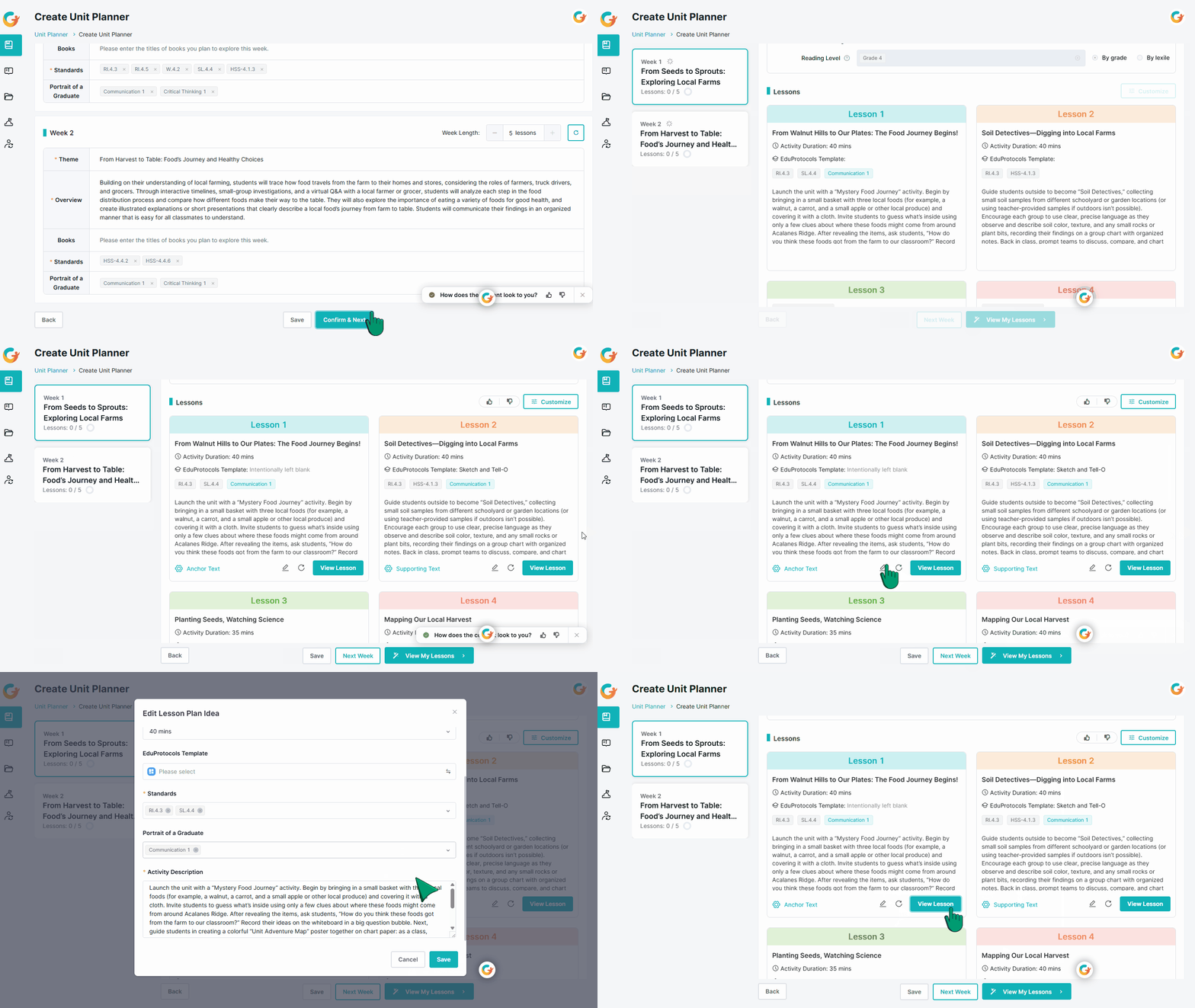
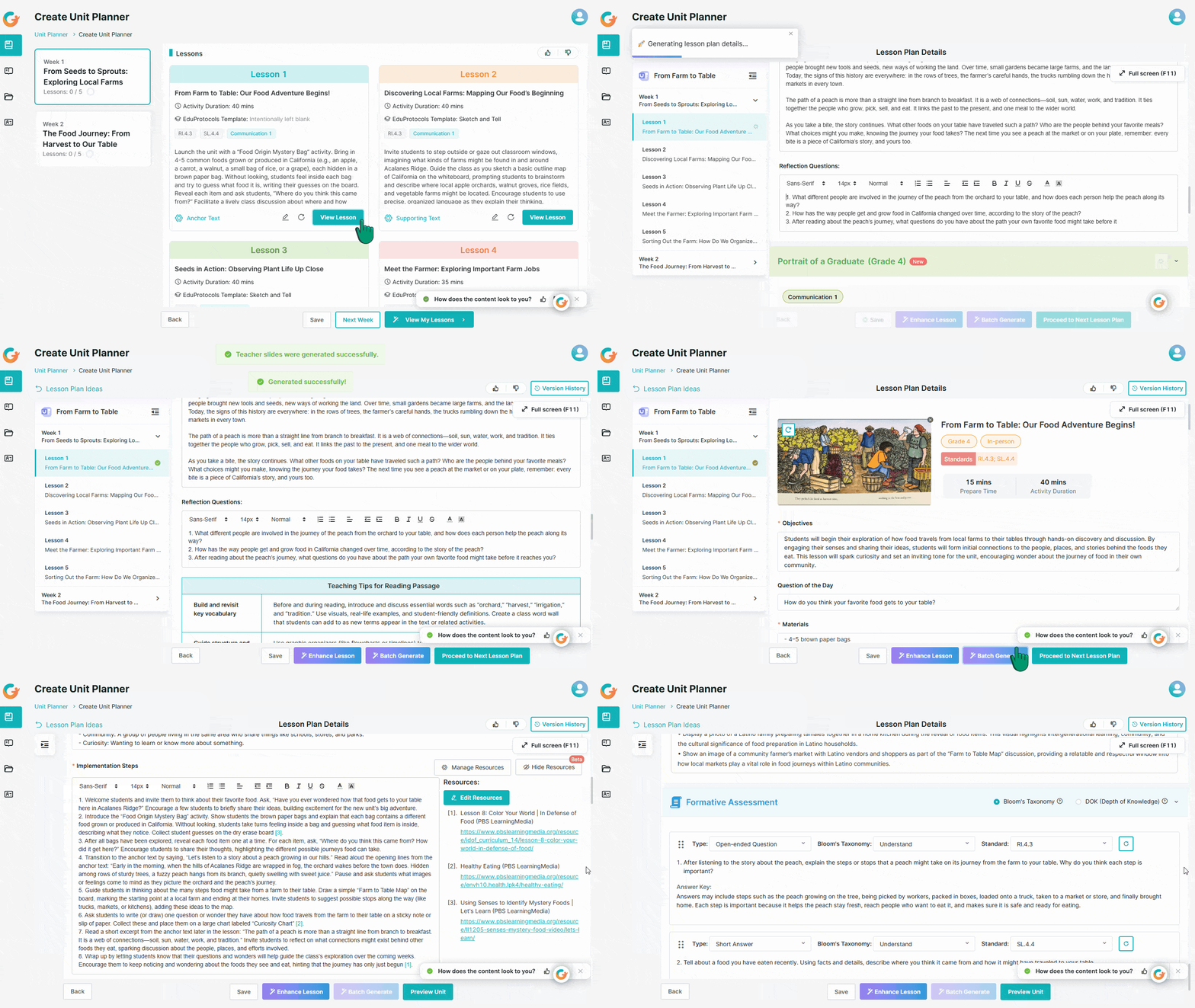
6. Generate Lesson Plan Details
Once you’re satisfied with a lesson idea, click View Lessons to generate the detailed lesson plan. To batch-generate lesson plans for all lesson ideas, click View My Lessons at the bottom.
Curriculum Genie will generate a detailed lesson description for each lesson, including the core lesson plan and any modules you’ve selected. Optional modules may include, but are not limited to:
- Future-Ready & PoG-Aligned Moments: Translate PoG from slogans into specific, measurable expectations and in-class opportunities embedded in tasks, talk, and products, so future-ready skills are actually built—not just named.
- Job-Embedded Support for Teachers: Embed “How do I teach this lesson?” guidance directly into each lesson—concrete teaching tips for the targeted academic standards, UDL/CLR-informed strategies, and notes on typical student behaviors and how to respond—so teachers aren’t left to figure it out alone.
Standards-Aligned Assessments: Turn every lesson into a standards-aligned check-in, with quizzes built across Bloom’s and DOK levels—making it easy to see true mastery of your academic standards instead of shallow recall. - EduProtocols-Based Student Activities: Drop in ready-made activity frames inspired by EduProtocols that boost participation, creativity, and collaboration while still tightly targeting your academic outcomes.
- Ready-to-Teach Teacher Slides: Instantly transform your written lesson plan into a ready-to-present slide deck—teachers just open, tweak, and hit “present.”
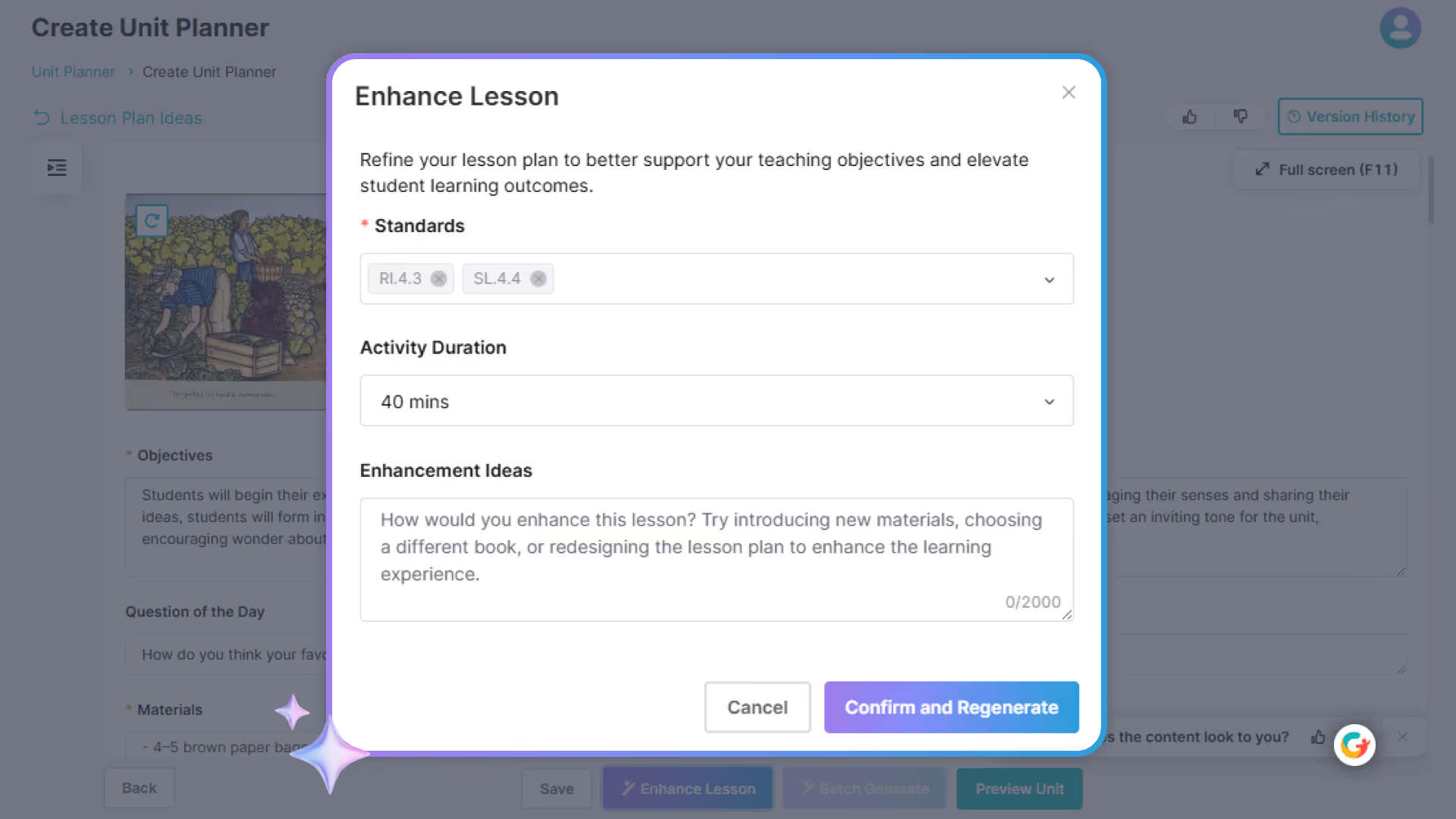
7. Enhance Lesson
Similar to the Unit Foundations, you can click Enhance Lesson to customize the lesson plan details by describing what you want to adjust (e.g., activities, pacing, differentiation, or materials).
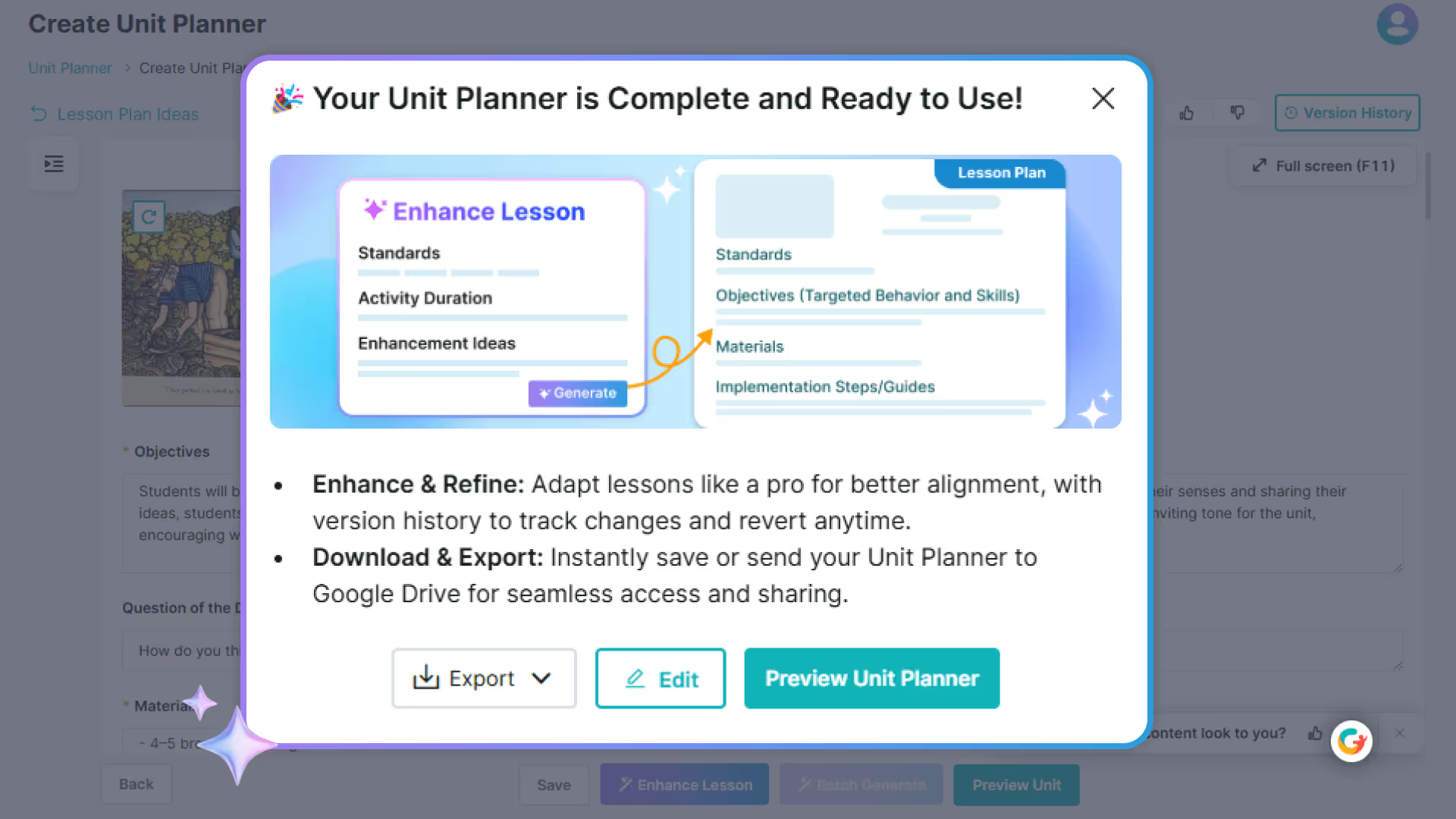
8. Your Unit Planner is Complete and Ready to Use!
Once all lessons are generated, you’ll see a confirmation pop-up. From there, you can preview the unit plan, make edits, or export it for offline use.
By utilizing the Curriculum Genie Unit Planner and its comprehensive features, educators can create dynamic, engaging, and tailored learning experiences that not only meet educational standards but also inspire and motivate students. Embrace this innovative tool to enhance your lesson planning and watch your students thrive!
For day-to-day instruction, see how to create or adapt lesson plans with an AI lesson planner.
If you already have units in place, see how to adapt an existing curriculum unit with AI.
Ready to get started? Try the exemplar and see it in action.
Frequently Asked Questions (FAQs)
Q: How do teachers know a unit generated this quickly is actually high quality?
A: The generated unit is a draft that teachers can review and refine throughout the planning process. Curriculum Genie creates the unit foundations, weekly structure, lesson ideas, and lesson details, while educators review the content, make adjustments, and decide what is appropriate for their instructional goals and students. The goal is to reduce the manual work of building a unit from scratch without removing professional review.
Q: How much control do teachers have over standards alignment?
A: Teachers choose the state and standards framework, then either select broader domains and let Curriculum Genie recommend relevant standards or choose specific domains and measures/indicators themselves. This lets educators decide how explicitly to define the academic targets before the unit is generated.
Q: Do teachers need to restart the entire unit if only one part needs to change?
A: No. Teachers can edit or regenerate specific unit foundations, weekly plans, and lesson ideas. They can also use Enhance Lesson to adjust activities, pacing, differentiation, or materials without rebuilding the full unit.